Try it on your own data
Every report in this article is in the free plan. One snippet for web and apps, up to 10 sites.
Start freeNumbers drift: a redesign drops a tag, a campaign loses its UTM tags, a bot slips into the visitor count. This guide runs a web analytics audit in seven areas, with a concrete check for each, how to reconcile with your backend, and how to turn the audit into alerts.
What you will learn
- Check coverage and backend reconciliation first; nothing else matters if they fail
- Compare events with the tracking plan and look for personal data in properties
- Turn the audit into alerts for collection gaps and anomalies
When to run an analytics audit
A web analytics audit checks whether your numbers can be trusted: that every page is tracked once, events fire when they should, sources are attributed, junk is kept out and privacy settings match your policy. Run one when you inherit a setup, after a redesign or migration, before a big decision that rests on the data, and once or twice a year anyway.
Keep it practical. The goal is a short list of fixes ranked by how much they distort the numbers people use, not a document nobody reads.
Seven areas to check
The table lists the seven areas with one key check each and what a failure looks like. Start with coverage and reconciliation: if pages are missing or totals are far from your backend, the rest does not matter yet.
| Area | Key check | Failure looks like |
|---|---|---|
| Coverage | Every template loads the script once; SPA routes tracked | Pages missing; pageviews doubled |
| Sessions and identity | Timeout setting; identify on login | Odd new vs returning split; users split across devices |
| Events | Events match the tracking plan | Missing events, empty properties, mixed names |
| Sources | Channel split, UTM tags, click IDs | Large or rising direct share |
| Filters and bots | Internal, bot and spam exclusion | Office IPs in reports; zero-second referrers |
| Privacy | Consent, retention, no personal data | Emails in URLs or properties |
| Reconciliation | Totals vs database and billing | Large, growing or browser-specific gaps |
Start with coverage and reconciliation.
How to run each check
- Coverage. Crawl or list your page templates and confirm each loads the script once. Single-page apps need route changes tracked; a site with no pageviews after the first page has this problem. Look for duplicate tags too.
- Sessions and identity. Check the session timeout and whether login identifies users. Compare new vs returning shares with what you expect.
- Events. Compare your tracking plan with the events actually arriving: missing events, events with empty properties, names that differ between web and app, personal data in properties. See event tracking.
- Sources. Look at the channel split and direct traffic. Check that campaign links carry UTM tags and that redirects keep click IDs.
- Filters and bots. Confirm internal traffic is excluded, bots are separated and spam referrers are absent (referral spam).
- Privacy. Check that consent, retention and IP handling match your privacy policy, and that no emails or phone numbers appear in URLs or properties.
- Reconciliation. Compare key totals with the source of truth (below).
Sample results
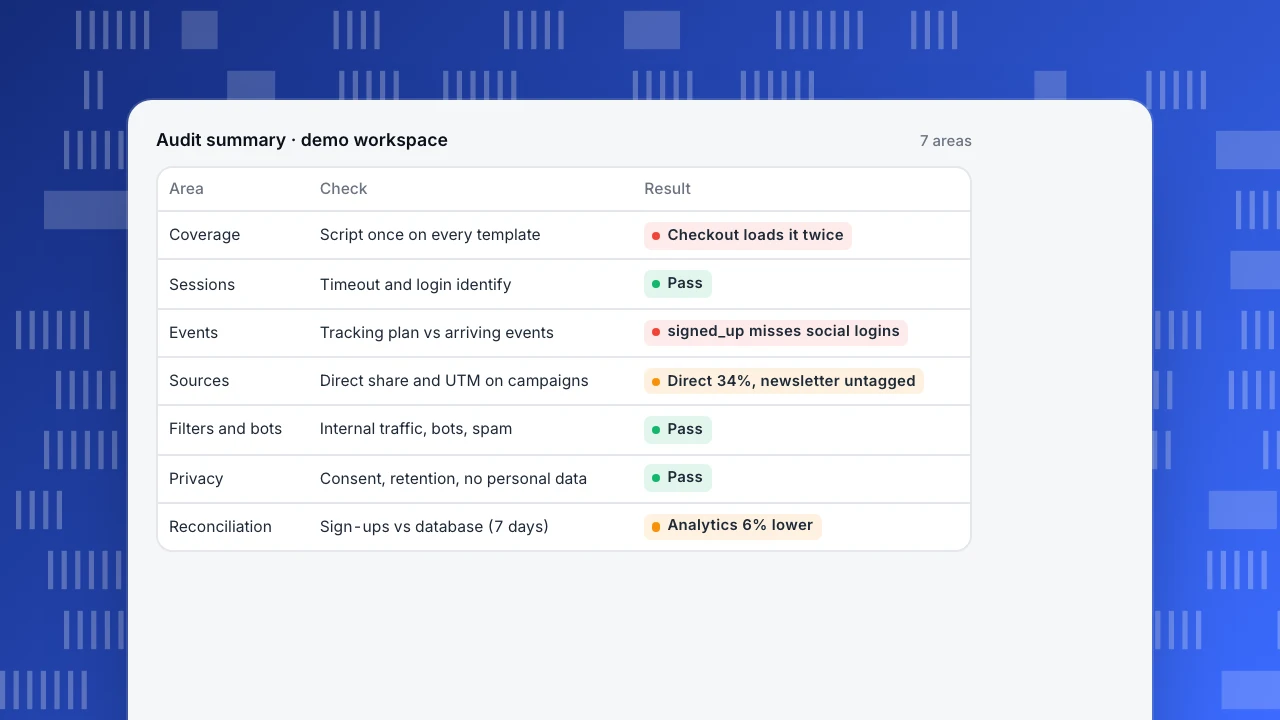
The example shows an audit summary. Two items fail: a checkout template that loads the script twice (doubling pageviews on those pages) and a sign-up event that misses social logins. One warning: direct traffic at 34%, with newsletter landing pages inside it. Fix the fails first; they change numbers people already report.
Audit summary · demo workspace
7 areas| Area | Check | Result |
|---|---|---|
| Coverage | Script once on every template | Checkout loads it twice |
| Sessions | Timeout and login identify | Pass |
| Events | Tracking plan vs arriving events | signed_up misses social logins |
| Sources | Direct share and UTM on campaigns | Direct 34%, newsletter untagged |
| Filters and bots | Internal traffic, bots, spam | Pass |
| Privacy | Consent, retention, no personal data | Pass |
| Reconciliation | Sign-ups vs database (7 days) | Analytics 6% lower |
Reconcile with your backend
The strongest check is to compare analytics with a system that counts the same thing independently:
- Sign-ups in analytics vs new accounts in the database.
- Purchases and revenue vs orders in billing (see conversion tracking).
- Visitors vs server logs, with bots removed.
Expect client-side events to be a few percent lower than the backend because of blockers and closed tabs. Server-side events should match closely. A gap that is large, growing or uneven by browser points to a tracking problem. Visitor counts differ between tools for structural reasons, explained in why UV never matches.
Keep it healthy
Turn the audit into alerts so the next problem is found in hours, not at the next audit:
- An alert when data stops arriving for longer than a set gap.
- An anomaly alert on pageviews and sign-ups.
- A weekly comparison of key events with the backend.
- A change log: who changed tags, exclusions or channel rules, and when.
Running an audit in TapCub
TapCub's troubleshooting guide gives a check order for missing data: one script tag with the right site key, local hosts, Do Not Track or Global Privacy Control, the request's origin in allowed domains, a paused project, exclusion rules (path, hostname, user agent, IP), plan limits and the time zone. Note that the collector answers 202 even when it rejects an event, so a successful response is not proof of storage (troubleshooting). The same guide covers duplicate events, missing single-page app pageviews and differences from other tools.
The privacy center shows the collect tier, consent rules, address truncation and retention (privacy). Monitors can alert on a fixed threshold, period change, forecast band, anomaly, rage-click rate or a collection gap, with a dry run that shows how often a rule would have fired in the last 30 days (monitors). To exclude your team's visits, see exclude internal traffic; for alert concepts, monitor.
FAQ
What is a web analytics audit?
A structured check that your analytics setup records the right data once, attributes it correctly, excludes junk and respects your privacy settings.
How often should you audit analytics?
After any redesign, migration or tag change, and at least once or twice a year otherwise. Continuous alerts cover the time in between.
What should a web analytics audit checklist include?
Coverage, sessions and identity, events against the tracking plan, sources and UTM tags, filters and bots, privacy, and reconciliation with backend totals.
How do I know if my analytics data is accurate?
Compare key totals with an independent system such as your database or billing. Small, stable gaps are normal for client-side data; large or growing gaps are not.
How long does an analytics audit take?
For a typical site, a day or two for the checks and a few more days for fixes, depending on how many templates and events there are.
See also: Website analysis, Implementing web analytics.
Was this article helpful?
We use your answers to fix and expand this page.
Couldn’t send. Please try again in a minute.
Thanks for the feedback. We’ll use it to improve this page.You’ve already sent feedback on this page. Thanks.

Product Experience Specialist
Writes about product experience, practical workflows, and growth, turning complex processes into clear steps for everyday decisions.