Try it on your own data
Every report in this article is in the free plan. One snippet for web and apps, up to 10 sites.
Start freeA JavaScript site can look perfect in the browser and empty to a crawler. This guide explains how Google processes JS in three phases, why most AI crawlers never run your scripts, which rendering strategy to choose, the problems that cause most failures, and an audit where server-side rendering lifted indexed URLs from 53% to 94%.
What you will learn
- Google crawls, queues for rendering, then indexes JS pages
- Most AI crawlers do not execute JavaScript at all
- Render titles, canonicals, links and main content on the server
- Use real <a href> links and History API routes, not fragments
- Compare raw HTML with rendered DOM to find gaps
What is JavaScript SEO?
JavaScript SEO is the part of technical SEO that makes sure search engines (and, increasingly, AI crawlers) can crawl, render and index pages whose content, links or metadata are produced by JavaScript. Frameworks like React, Vue, Angular and Svelte can build fast, app-like sites, but if the meaningful content only appears after scripts run in the browser, a crawler that does not run those scripts, or runs them late, sees an empty shell.
How Google processes JavaScript pages
Google handles JavaScript pages in three phases:
- Crawling. Googlebot fetches the URL and reads the initial HTML response. Links in that HTML are queued right away.
- Rendering. Pages are placed in a render queue. A headless, evergreen Chromium runs the JavaScript and produces the rendered DOM. Google says the delay is usually seconds but can be longer.
- Indexing. Content, links and metadata from the rendered HTML are used for indexing; new links found after rendering go back to crawling.
Three consequences matter in practice:
- If the initial HTML says
noindex, Google may skip rendering, so removing it with JavaScript does not work. - Rendering costs resources. Large sites with heavy client-side rendering get discovered and refreshed more slowly; see crawl budget.
- Other crawlers differ. Bing renders JavaScript with limits. Most AI crawlers, such as GPTBot and ClaudeBot, fetch HTML but do not execute JavaScript, according to Vercel's analysis of crawler traffic. Client-only content is invisible to them.
Rendering strategies compared
| Strategy | Where HTML is built | SEO | Notes |
|---|---|---|---|
| Client-side rendering (CSR) | In the browser | Weakest: depends on the crawler rendering JS | Fine for logged-in apps, risky for public content |
| Server-side rendering (SSR) | On the server per request | Strong: full HTML in the first response | Next.js, Nuxt, SvelteKit, Remix |
| Static site generation (SSG) | At build time | Strongest and fastest | Best for content and marketing pages |
| Incremental / hybrid | Static, refreshed on a schedule or on demand | Strong | Good for large catalogs |
| Dynamic rendering | Prerendered HTML served only to bots | Works, but Google calls it a workaround, not a long-term solution | Adds maintenance and mismatch risk |
For public pages that need to rank, render the main content, title, meta description, canonical and internal links on the server or at build time. Hydrate interactivity on top.
| Strategy | SEO | Best for |
|---|---|---|
| Client-side rendering | Weakest | Logged-in apps |
| Server-side rendering | Strong | Dynamic public pages |
| Static generation | Strongest | Content and marketing |
| Dynamic rendering | Workaround | Legacy apps, short term |
Most AI crawlers only see what is in the first HTML response.
Common JavaScript SEO problems
| Problem | Why it hurts | Fix |
|---|---|---|
Links built with onclick or <div> instead of <a href> | Crawlers only follow real links | Use <a href="/path"> for navigation |
Routes in URL fragments (/#/pricing) | Fragments are ignored for indexing | Use the History API with real paths |
Same <title> on every route | Pages look duplicate | Set title, description and canonical per route, server-side |
| Content loaded after user interaction | Crawlers do not click or scroll | Render key content without interaction |
| Error routes return HTTP 200 | Soft 404s waste crawl budget | Return a real 404 status or a noindex from the server |
| Blocking JS or API files in robots.txt | Google cannot render | Allow the resources pages need |
| Huge bundles, slow APIs | Rendering times out; poor LCP | Split code, cache API responses, SSR above-the-fold content |
Lazy-loaded images without real src | Images not indexed | Native loading="lazy" with a real src |
Worked example: auditing a client-rendered catalog
A store built as a client-rendered React app had 1,200 product and category URLs in its sitemap. We compared the raw HTML response with the rendered DOM for every URL (sample data):
| Check | Raw HTML | Rendered DOM |
|---|---|---|
Unique <title> | 1 (same "Shop" on every page) | 1,180 |
| Internal links per page (median) | 3 | 46 |
| Words of product content (median) | 0 | 380 |
| Canonical tag | Missing | Present (added by JS) |
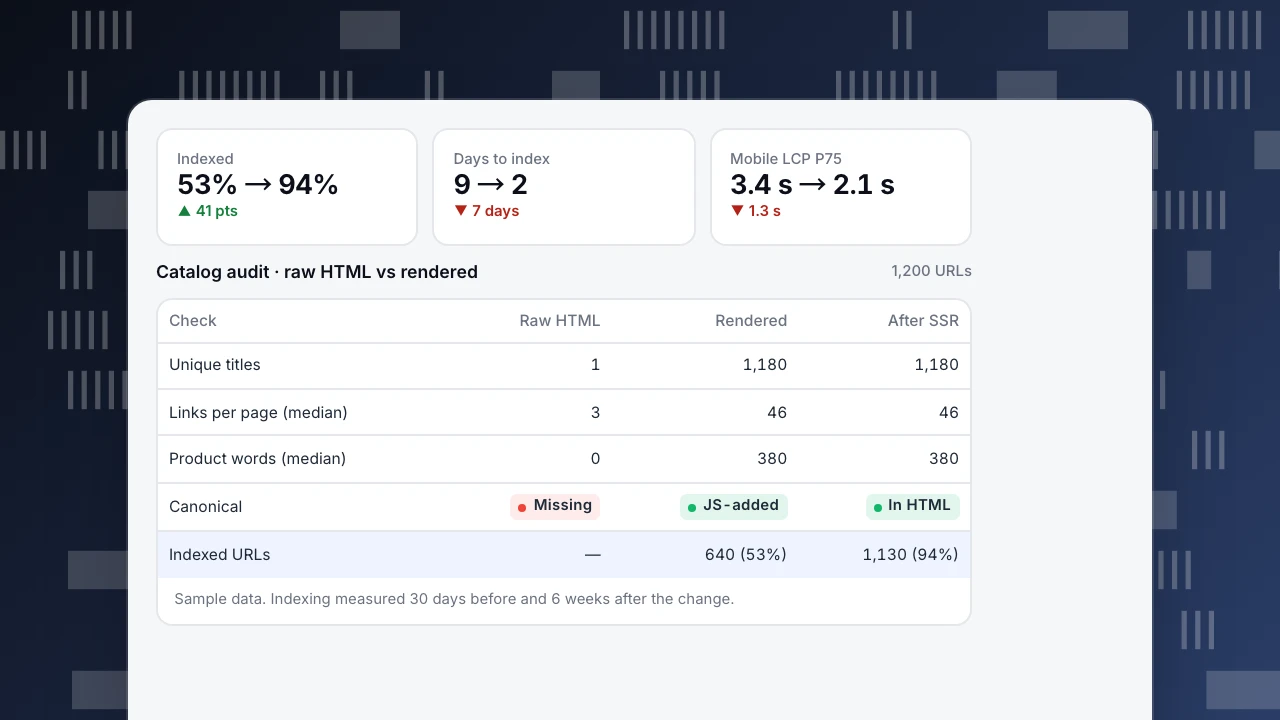
What the logs showed. Over 30 days Googlebot fetched all 1,200 HTML URLs, but only 640 (53%) were indexed. AI crawler requests returned the same empty shell for every product.
The fix. The team moved product and category templates to server-side rendering, output titles, canonicals and internal links in the first response, and returned real 404s for discontinued products.
Six weeks later: 1,130 of 1,200 URLs indexed (94%), median time from publishing a product to indexing fell from 9 days to 2, and AI crawlers started receiving full product text. Mobile LCP at P75 also improved from 3.4 s to 2.1 s because content no longer waited for the bundle and API.
Indexed
53% → 94%
▲ 41 pts
Days to index
9 → 2
▼ 7 days
Mobile LCP P75
3.4 s → 2.1 s
▼ 1.3 s
Catalog audit · raw HTML vs rendered
1,200 URLs| Check | Raw HTML | Rendered | After SSR |
|---|---|---|---|
| Unique titles | 1 | 1,180 | 1,180 |
| Links per page (median) | 3 | 46 | 46 |
| Product words (median) | 0 | 380 | 380 |
| Canonical | Missing | JS-added | In HTML |
| Indexed URLs | — | 640 (53%) | 1,130 (94%) |
Sample data. Indexing measured 30 days before and 6 weeks after the change.
How to test JavaScript SEO
- View the raw HTML (
curlor View Source) and check that title, meta description, canonical, main content and links are there. - Use Google Search Console URL Inspection → test live URL → view tested page to see the rendered HTML and any blocked resources.
- Crawl twice with a crawler that can render JavaScript: once without rendering, once with it. Compare titles, links and word counts.
- Read your server logs for Googlebot and AI crawler requests: are they fetching your pages, JS and API files, and getting 200s? See log file analysis.
- Watch index coverage for "Crawled – currently not indexed" and soft 404 reports.
Tracking crawlers and performance in TapCub
TapCub's bot detection separates crawlers from human visitors, and the AI crawler ledger shows which AI bots requested which pages. To see crawler requests that never execute JavaScript, import server logs. For real-user speed after a rendering change, compare LCP and INP at P75 per page in Core Web Vitals. On a single-page app, follow the SPA install guide so route changes are counted as pageviews.
See also: Indexability, Multilingual SEO, Web crawler.
Sources
- Google Search Central. Understand JavaScript SEO basics.
- Google Search Central. Dynamic rendering as a workaround.
- Vercel (2024). The rise of the AI crawler.
Was this article helpful?
We use your answers to fix and expand this page.
Couldn’t send. Please try again in a minute.
Thanks for the feedback. We’ll use it to improve this page.You’ve already sent feedback on this page. Thanks.

Customer Experience Consultant
Writes about live chat, visitor conversations, and self-service, sharing practical ways to make customer communication clearer and more effective.