Add Live Chat to Website: 3 Methods and a Pre-Launch Checklist
Three ways to add live chat to a website — paste a script, install a platform app, or use a tag manager — with steps for each, a five-point pre-launch checklist, and the metrics to watch in week one.
You can add live chat to a website in three ways: paste the provider's script into your site template, install its plugin or app, or deploy it through a tag manager. The install takes minutes. Whether chat pays off depends on what surrounds it: who answers, what happens after hours, and whether you can tie each chat to the page and traffic source it came from. This guide covers the three methods, five pre-launch decisions and the numbers to watch in week one.
What you will learn
Three installation routes: paste the script, use your platform's plugin or app, or deploy via a tag manager — pick by who maintains your site
Before launch, decide who answers, set office hours with an offline fallback, and check mobile, privacy/CSP and page speed
In week one, track chat start rate, first response time, offline messages and chat-vs-no-chat conversion — as a baseline, not proof
Three ways to add live chat to a website
There are three common ways to add live chat to a website: paste the provider's JavaScript snippet into your site template, install the provider's plugin or app on your website platform, or deploy the snippet through a tag manager such as Google Tag Manager. All three end with the same result — a chat bubble on your pages — but they differ in who can install it, who maintains it, and what can go wrong.
Pick by how your site is built and who owns changes to it:
Custom-coded site (plain HTML, a framework, or a developer-maintained template): paste the snippet, or use a tag manager if one is already deployed.
WordPress, Shopify, Wix, Squarespace or similar: start with the platform's plugin or app directory. It is the fastest route and needs no code access.
Marketing team without developer access, tag manager already on the site: deploy through the tag manager and keep version history.
The table below compares the three methods. One thing none of them decides for you: who answers the chats. That is an operations question, covered in the pre-launch checklist.
Method
Setup
Who maintains it
Watch out for
Paste the script
Copy the snippet, paste before
in the shared template
Whoever edits the site code
Theme updates can drop the snippet; needs code access
Platform plugin / app
Install from the platform's directory, connect the account
The provider's integration, via the platform
Per-theme on Shopify; depends on the provider keeping the app updated
Tag manager (e.g. GTM)
Custom HTML tag, All Pages trigger, preview, publish
Marketing ops, inside the tag manager
Do not also hard-code the snippet; CSP must allow the tag manager's domains
All three load the same widget; the difference is who installs and maintains it.
Method 1: paste the chat script
Every major live chat provider installs the same way at the core: a short JavaScript snippet that loads the chat widget. The steps are nearly identical across providers:
Create an account with the chat provider and add your website's domain.
Find the installation code in the provider's dashboard, usually under settings, installation, or channels.
Copy the snippet.
Paste it into your site's shared template — the file that wraps every page — just before the closing </body> tag. On a custom site this is often index.html, a layout file, or footer.php. On a single-page app, add it to the app shell so it loads on every route.
Save, deploy, and open your site in a private window. The bubble should appear within a few seconds.
Why before </body>: the page content renders first and the chat script loads after it, so the widget does not block your content. Most providers load their script with async for the same reason.
If the bubble does not appear, check three things in order: the snippet is on the page you are testing (view source and search for the provider's domain), your cache or CDN is serving the updated template, and no content security policy is blocking the script. CSP is covered in the checklist; for TapCub-specific visibility issues, see chat bubble not showing.
Method 2: use your platform's plugin or app
If your site runs on a website platform, check its official extension directory before touching any code.
WordPress. Search the plugin directory for your chat provider, install and activate the plugin, then connect it to your account, usually with a login or an API key. The plugin injects the snippet on every page for you; WordPress's own documentation covers the install and activation flow in Managing Plugins. Prefer plugins that use WordPress's standard script enqueueing — they keep working when the theme changes.
Shopify. Install the provider's app from the Shopify App Store, then enable its app embed in your theme: Online Store → Themes → Customize → App embeds, toggle the chat widget on, save. Shopify's theme app extensions documentation explains how app embeds work. One caveat: app embeds are per-theme — if you switch or duplicate themes, re-enable the embed.
Wix, Squarespace and similar builders. Look for the provider in the platform's app market, or use the platform's embed-code feature to paste the snippet site-wide. The trade-off is the same everywhere: the platform route is faster and needs no developer, but you depend on the provider maintaining its integration.
Method 3: deploy through a tag manager
If Google Tag Manager or another tag manager already runs on your site, you can add live chat without touching the site's code at all:
In GTM, create a new tag and choose the Custom HTML tag type, described in Google's Tag Manager developer guide.
Paste the chat provider's snippet into the HTML field.
Set the trigger to All Pages, or only the pages where you want chat.
Use Preview mode to confirm the tag fires and the bubble appears, then publish the container version.
This route suits marketing teams that ship changes without a developer, and it gives you version history and a rollback path. Two cautions: do not deploy both the GTM tag and a hard-coded snippet — you would load the widget twice. And if your site sends a Content-Security-Policy header, the tag manager's domains must be allowed too.
Pre-launch checklist
Installing the bubble takes minutes. Running it well takes decisions. Settle these five before you point visitors at the chat:
1. Who answers, and when. Name the people who will handle chats and where they work — the provider's inbox, a shared inbox, or mobile. A chat button that nobody answers is worse than no button: visitors who write and get silence rarely come back. If you cannot staff live hours yet, start with offline messages only.
2. Office hours and an offline fallback. Set working hours in the chat settings, including the timezone. Outside those hours, visitors should be able to leave an email and their question instead of hitting a dead end, and someone should own replying to those messages the next business day.
3. Which pages, and mobile. Decide where the bubble shows. High-question pages — pricing, product, contact, checkout — are the usual starting point; a bubble on every page is fine if someone is watching it. Test on a phone: the bubble must not cover the primary button or the cookie banner, and some teams hide it on small screens entirely.
4. Privacy and CSP. Chat collects personal data: messages, often email addresses, sometimes browsing context. Update your privacy policy to name the chat provider and what it collects, and check whether your consent setup needs to cover it — requirements depend on your configuration and local law. If your site uses a Content-Security-Policy header, add the provider's script and connect domains to the policy; MDN's CSP guide explains the directives. A blocked script is one of the most common reasons a "correctly installed" bubble never appears.
5. Page performance. A chat widget is a third-party script: it adds requests and can affect loading metrics such as LCP if it loads render-blocking resources, as web.dev's LCP guidance explains. Choose a provider whose snippet loads asynchronously, measure your key pages before and after installation with the same tool, and keep the widget off pages where it adds nothing.
What to measure in the first week
In week one, watch a small set of numbers daily rather than a dashboard nobody reads:
Chat start rate — visitors who opened a chat ÷ all visitors. Tells you whether the bubble is noticed.
First response time — how long until a human replies, and the share of chats answered within your target, for example 2 minutes.
Offline messages — the count, and how many got a reply the next business day.
Conversion comparison — goal completion among visitors who chatted versus visitors who did not.
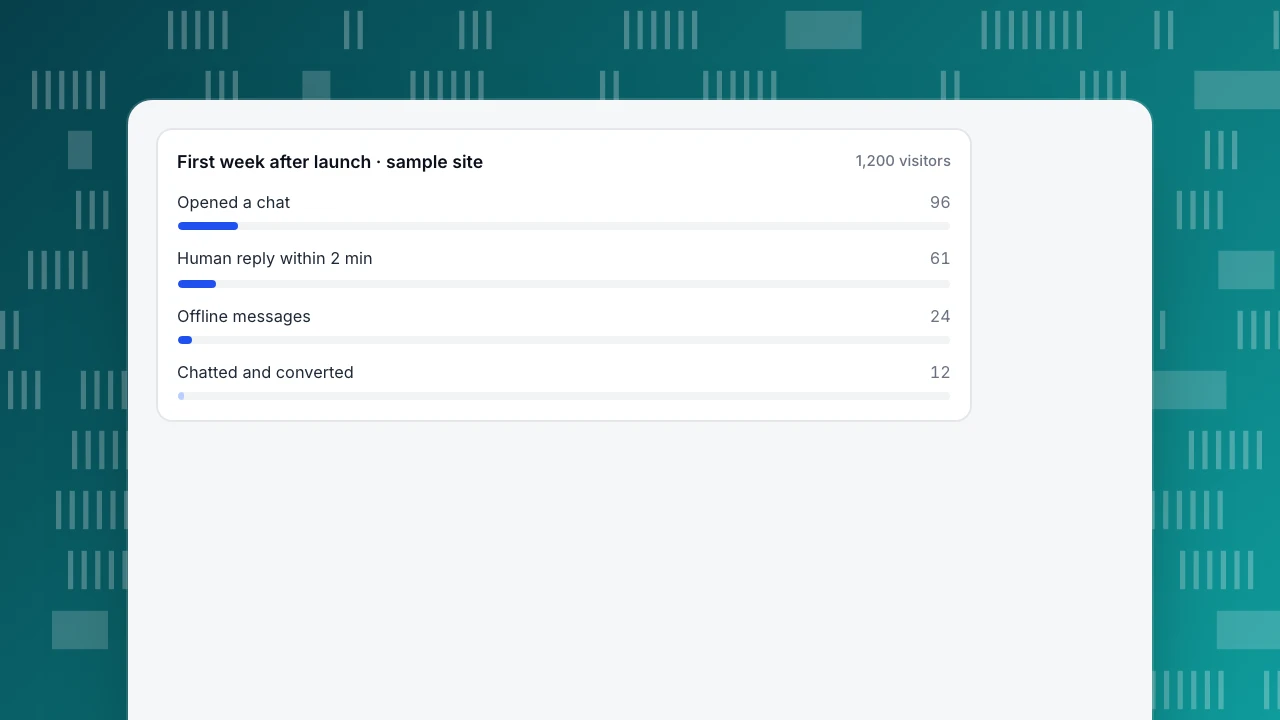
Sample data: a site with 1,200 visitors in its first week. 96 visitors opened a chat (96 ÷ 1,200 = 8.0% chat start rate). 61 of the 96 chats got a human reply within 2 minutes (61 ÷ 96 = 63.5%). Outside office hours, 24 visitors left offline messages; 21 were replied to the next business day (21 ÷ 24 = 87.5%). 12 of the 96 visitors who chatted completed the goal (12 ÷ 96 = 12.5%), against 26 of the 1,104 who did not (26 ÷ 1,104 ≈ 2.4%).
Two cautions when you read that last pair. It is an observational comparison, not a controlled experiment: visitors who choose to chat are often further along in their decision, so the gap overstates what chat alone caused. And one week is a small sample — treat the numbers as a baseline to improve, not proof. For what the evidence actually supports about chat and conversions, see does live chat increase conversions. If your goal is leads rather than purchases, the same weekly review applies to conversations that captured an email — more on that in live chat lead generation.
app.tapcub.com
First week after launch · sample site
1,200 visitors
Opened a chat96
Human reply within 2 min61
Offline messages24
Chatted and converted12
Sample data
Sample data: 96 of 1,200 visitors opened a chat (8.0%); 61 chats got a human reply within 2 minutes (63.5% of chats). Visitors who chatted converted at 12.5% (12/96) vs 2.4% (26/1,104) for visitors who did not — an observational comparison, not proof of cause.
How to add live chat in TapCub
TapCub's chat runs on the same script as its analytics. Compared with a standalone widget, that changes two things: there is nothing extra to install, and every conversation arrives already joined to the visitor's analytics data.
Turn it on. If the TapCub analytics snippet is already on your site, open Live chat › Chat settings › Appearance, switch on Enable live chat and save. Every page that loads the script shows the bubble, with no template change and no tag manager. New to TapCub? Copy the snippet from Live chat › Chat settings › Install and paste it as in Method 1; that one snippet then covers analytics and chat. Step by step: enable live chat.
Set hours and the fallback. Set office hours per timezone in Live chat › Chat settings › Office hours. Outside them, or when nobody is online, visitors leave an email and a question, collected in Live chat › Chat settings › Offline messages with the statuses new, replied and closed. If AI replies are on, the knowledge base answers first and the form appears only when it cannot.
Check mobile.Hide bubble on mobile under Appearance hides the bubble in windows narrower than 640 pixels and in phone browsers. Use it if the bubble covers your checkout button.
Answer with context. In Live chat › Inbox, the side panel shows the page the visitor is on, where they came from and their last two days of browsing; View in analytics opens the full visitor profile. Agents start from what the visitor looked at instead of asking.
Read week one without exporting anything.Live chat › Reports shows conversations, first response (human replies only) and resolution rate. Live chat › Reports › Conversion attribution runs the chatted-versus-not comparison from the first-week section on the same visitor IDs your analytics uses, and lists the pages where chats started. It warns when fewer than 30 visitors chatted, which is the small-sample caution above built into the report.
Need chat somewhere without your site? A standalone chat page link works in email signatures, QR codes and social profiles; see standalone chat link. For the concept itself, see live chat.
FAQ
How do I add a chat button in HTML?
Copy the JavaScript snippet from your chat provider's dashboard and paste it into your site's shared template, just before the closing </body> tag, then reload the page. The snippet creates the button and loads the chat window; you do not need to write the button yourself. On platform sites, the provider's plugin or app does this for you.
Can I show live chat on every page of my website?
Yes — a site-wide snippet or plugin shows the bubble everywhere, and most providers also let you restrict it to specific pages. A common approach is to start on high-question pages such as pricing, product and contact, then expand once someone reliably answers. Whatever you choose, make sure the bubble does not cover key buttons on mobile.
Why isn't my live chat widget showing on my website?
Check in this order: the snippet is actually on the page (view source), caching or a CDN is not serving an old version, a Content-Security-Policy header is not blocking the provider's domains, and the widget is not hidden by the provider's own visibility settings such as mobile rules, page rules or offline state. TapCub users can follow chat bubble not showing.
How do I set live chat availability hours?
Set office hours in the chat settings, including the timezone your team works in. Outside those hours the widget should switch to an offline form that collects the visitor's email and question, and someone should own replying the next business day. If you enable AI replies, let the knowledge base answer first and keep the offline form as the fallback.
Does live chat slow down my website?
It adds a third-party script, so it can — mainly if the snippet loads synchronously or the widget injects heavy resources early. Choose an asynchronously loading widget, measure key pages before and after with the same tool, and keep chat off pages where it is not needed. A correctly loaded chat script should not block your main content from rendering.