Try it on your own data
Every report in this article is in the free plan. One snippet for web and apps, up to 10 sites.
Start freeEcommerce integration connects your store to payment, shipping, email, support and analytics so each system describes the same order the same way. It works when order, product and user IDs are decided first and every connection uses them. Most mismatched numbers come from two systems using different keys, not from a faulty connector.
What you will learn
- Decide three identifiers before choosing tools: order ID, product ID, user ID
- Compare systems by order ID, not by totals: offsetting duplicates and omissions can make totals look right
- Send purchases and refunds from the server with a repeat-safe key; keep the browser for behaviour
What ecommerce integration means for your data
In an analytics context, ecommerce integration means connecting your store to the other systems that touch an order, so that each system describes the same sale in the same terms. The storefront creates the order, a payment service confirms the money, a warehouse or shipping service fulfils it, and an email or support tool talks to the customer afterwards. Every connection moves data, and every connection can quietly change it.
The table lists the integration types you are most likely to meet, what moves across, the key the two sides must share, and what usually breaks when they do not.
| Integration | What moves | Key you join on | What breaks without it |
|---|---|---|---|
| Storefront → analytics | Page views, add-to-cart, checkout and purchase events | Order ID, product ID, visitor or user ID | Orders counted twice, or not at all; revenue that does not match the store |
| Payment service → order record | Authorised, captured, refunded amounts | Order ID (or a payment reference stored on the order) | Paid orders missing, refunds that never reduce revenue |
| Storefront → inventory or ERP | Stock levels, SKUs, cost of goods | Product ID (SKU) | Wrong stock shown, margin reports that skip products |
| Storefront → shipping | Addresses, parcels, tracking status | Order ID | Delivered orders with no status, support asking the customer for the number |
| Storefront → email or CRM | Customer, order and consent data | User ID or email, order ID | Duplicate customers, promotions sent to people who just bought |
| Support tool → storefront | Order lookup inside a conversation | Order ID, user ID | Agents who cannot see which order the customer means |
Notice that the last column is almost always about identifiers. Most "the numbers do not match" problems are not bugs in a connector; they are two systems using different keys for the same thing. That is the argument of this article: before you pick a tool or write any code, decide how orders, products and users are identified, and make every integration use those identifiers.
| Integration | Key you join on |
|---|---|
| Storefront → analytics | Order ID, product ID, visitor or user ID |
| Payment service → order record | Order ID or payment reference on the order |
| Storefront → inventory or ERP | Product ID (SKU) |
| Storefront → shipping | Order ID |
| Storefront → email or CRM | User ID or email, order ID |
| Support tool → storefront | Order ID, user ID |
The key is what lets two systems agree that a record is the same sale, item or person.
The three IDs every integration depends on
Whatever platform you run, three kinds of identifier decide whether your systems agree.
- Order ID. One value for one sale. Schema.org's
Ordertype has anorderNumberproperty for exactly this: the identifier of the transaction. Analytics event specifications use the same idea; Google's ecommerce event reference, for example, marks the transaction ID as required on purchase and refund events. - Product ID. One value for one sellable item. Pick one catalog identifier, usually your SKU, and use it everywhere. If you sell items that have a global trade number (GTIN), keep it as a separate attribute rather than replacing the SKU. The same reference lists an item ID or an item name on each line item and recommends sending both.
- User ID. One value for one person after they identify themselves, such as an account ID. Before that, the visitor has only an anonymous ID created by the browser or app.
A useful test: take any order from last week and ask three questions. Can I find it in the storefront, the payment service and analytics using the same order ID? Does every line on it carry the same product ID in all three? If the buyer was logged in, is the user ID the same everywhere? If the answer to any is no, fix that before adding another integration.
Order ID: the key that decides whether the numbers match
The order ID has two jobs. It joins records across systems, and it stops the same sale from being counted twice.
Duplicates are the more common failure. A shopper refreshes the confirmation page, a payment service retries a webhook, or a script fires on both the page and the server. If each of those writes a new row, one order becomes two. An order ID lets the receiving system say "I have already stored this one." Use a value that is stable across retries: the order number your store generates, not a random value created at the moment the event is sent.
Three rules keep order IDs useful:
- Create it once, at order creation, and pass it along. Do not build a second ID in each system.
- Keep refunds on the same ID. A refund is a new event about an old order, so it needs the original order ID to be subtracted from the right sale.
- Never reuse an ID after a cancelled or failed payment. If a retry creates a new order, that is a new ID; if it completes the same order, it keeps the old one.
Product ID: one catalog, one identifier
Product IDs drift because catalogs are edited by different people. The storefront uses a SKU, the analytics snippet sends the page slug, and the feed sent to an ad platform uses a third value. Item and category reports then show two rows for one product, or products with no match at all.
Decide three things in advance:
- Which field is the product ID. Usually the SKU. For variants, decide whether size and colour have their own SKU, and then keep to it.
- What happens when a product is renamed or merged. The ID stays; the name changes. Names are labels, not keys.
- Who owns the catalog. One system is the source, and the others read from it. A catalog copied by hand into three tools will diverge within a month.
You can measure the damage with one number: the share of product IDs seen in analytics that also exist in the catalog. In the sample later in this article, 96 of 120 IDs match, which means a fifth of items cannot be ranked correctly.
User ID: guests, logins and the join to the customer
Visitors are anonymous until they log in or give an email. Integrations that need a person, such as email, support or lifetime value, depend on that moment of identification.
Plan for three states. An anonymous visitor has only a browser ID. A guest buyer has an email on the order but no account. A logged-in customer has an account ID. The same person can pass through all three, on different devices, so a user ID that is only set at login will leave early visits unlinked.
Practical choices that help:
- Use an internal account ID, not an email address, as the user ID; emails change and are personal data.
- Send the user ID on every order from a logged-in customer, so order history and behaviour belong to one record.
- For guest checkout, keep the order ID as the join key and accept that you cannot link the buyer to earlier visits unless they log in later.
Browser or server: where should each event come from
Events can be sent by the page in the shopper's browser or by your own server. The two behave differently, and the choice decides how much you can trust revenue.
| Event | Better source | Why |
|---|---|---|
| Product view, add to cart, begin checkout | Browser | These are behaviour on the page; they do not need money to be right |
| Purchase, with amount and currency | Server | Created after the payment result is known, so ad blockers, closed tabs and refreshed pages cannot lose or repeat it |
| Refund | Server | Happens later, with no page involved |
| Login | Server or browser | Either, as long as the user ID is set once |
Some hosted checkouts are isolated from the rest of the store, so a script that works on the product pages never runs on the payment page. This is another reason to send the purchase from the server, where the order record already exists. Whatever you choose, send each fact from one place only. A purchase reported by both the browser and the server is two purchases.
An alignment checklist before you go live
Run this list against a test order, then against a week of real orders.
- One order ID is created at order creation and appears unchanged in the storefront, payment service, analytics and support tool.
- Purchase events are sent once, from one source, with a repeat-safe key.
- Every line item carries the catalog product ID, plus quantity and price.
- Currency is stated on every amount, and you know which currency reports use.
- Refunds and cancellations reference the original order ID.
- Taxes, shipping and discounts are treated the same way in every system: either all included in "revenue" or all excluded.
- The user ID is set at login and on every order from a logged-in customer.
- A test order shows up in each connected system within the time you expect.
- A weekly reconciliation compares order counts and revenue across systems and writes the gap down.
Item 6 matters more than it looks. If the store reports revenue after discount and before shipping, the payment service reports the amount charged including tax, and analytics reports whatever the page happened to show, three correct systems will give three different totals.
Worked example: reconcile one week of orders
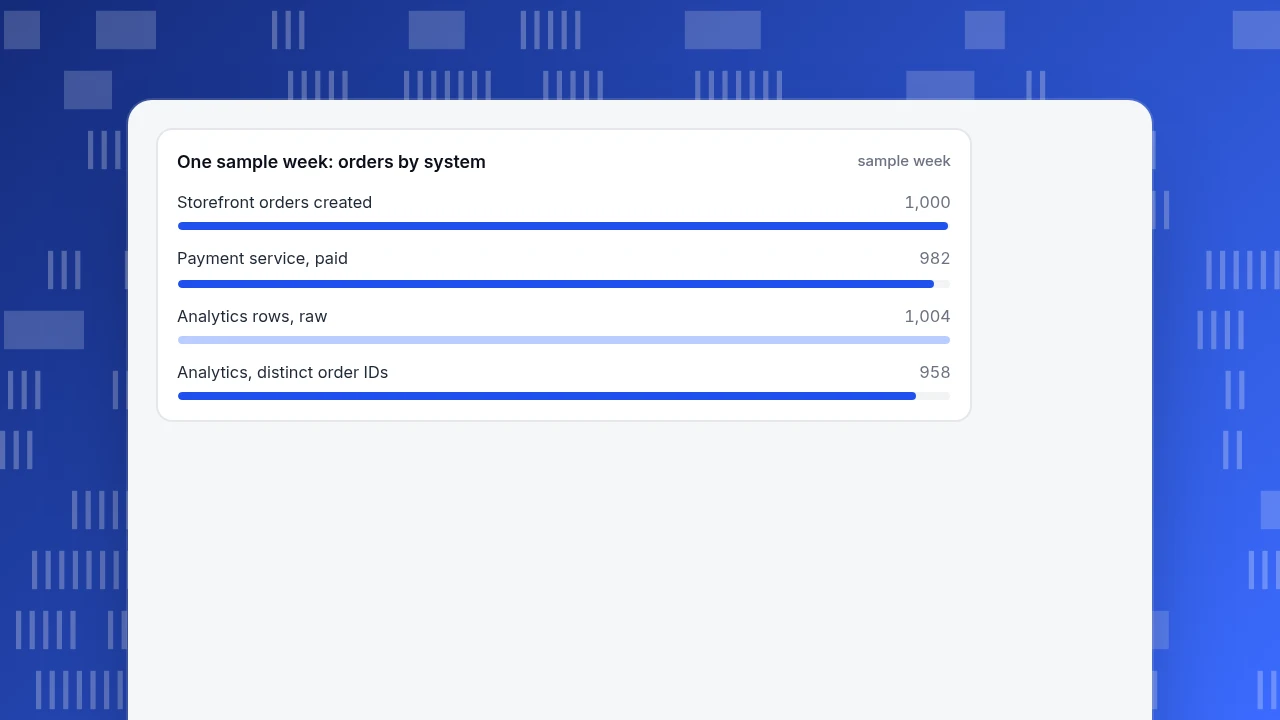
Sample data: one store, one week. The storefront created 1,000 orders. The payment service shows 982 as paid; the other 18 failed or were abandoned at payment. Analytics shows 1,004 purchase rows. Every sale in the sample is $60, so revenue differences are easy to follow.
The rows in analytics are not the same as the orders in analytics. When the rows are grouped by order ID:
- 958 distinct order IDs, so 46 of the 1,004 rows are duplicates (1,004 − 958).
- 24 paid orders never reached analytics (982 − 958).
- Match rate against the payment service: 958 ÷ 982 = 97.6%.
The raw count looks close, 1,004 against 982, an apparent excess of only 22. That figure hides two opposite errors: +46 duplicates and −24 missing. They partly cancel, which is why a quick comparison of totals can look fine while the data is wrong. In revenue terms, 1,004 rows are $60,240 against $58,920 in the payment service, a $1,320 gap that comes from duplicates and omissions together.
The fixes are different. Duplicates are cured by a repeat-safe key on the order ID. Missing orders are cured by sending the purchase from the server instead of the page, or by finding why the page event did not fire. Without the join on order ID you would have seen only "+22" and perhaps adjusted the total, which fixes nothing.
For products, 120 distinct item IDs appeared in analytics and 96 matched the catalog, 80%. The other 24 are page slugs or renamed products, so the best-seller list has gaps until the IDs are corrected.
One sample week: orders by system
sample weekCommon mistakes
- Treating a total that is close as proof it is right. As shown above, offsetting errors hide inside matching totals. Compare by order ID, not by sum.
- Using the order number shown to customers as a join key without checking it is unique. Some stores restart numbering or reuse numbers per channel.
- A different ID in each system. Each connector invents its own, so no two systems can be joined.
- Sending purchase from both the page and the server. Keep the amount on the server event.
- Product names as keys. Renaming a product splits its history.
- Revenue defined differently by each system. Agree once whether it includes tax, shipping and discounts.
- Never reconciling. Integrations drift. A weekly count comparison catches most problems within days.
In TapCub: send the order from your server
Take the example above: a store with a 24-order gap and 46 duplicates. In TapCub it is handled like this, and TapCub does not provide a ready-made connector for any storefront platform; the site builder install is a script tag in the theme, and a checkout that the platform isolates will not see it.
- Install the script on the store pages. It records product views, add-to-cart and checkout behaviour in the browser.
- Send the purchase from your server. When payment succeeds, post a
purchaseevent to the server events interface with the order ID, amount and currency, and anitemsarray if you want product, category and brand rankings. Send arefundwith the same order ID later. - Use the order ID as the repeat-safe key. Set
insert_idto the order ID. A retry with the same key is stored once. The browser script does not send this key, so keep the amount on the server event only. - Check the mapping. Open All-platform analytics › Configuration › Business settings and look at the Commerce tab: the event and property names default to
purchase,refund,revenue,currencyandorder_id. - Reconcile. In All-platform analytics › Business › Commerce & revenue compare orders and revenue with the payment service for the same dates. If the page is empty, the event name does not match the mapping and the page shows the name TapCub is waiting for.
TapCub reads the order ledger and reports revenue, orders, average order value and refunds; it does not connect to your payment service, warehouse or email tool for you. Those integrations stay with the platforms involved. For what to measure once the data is clean, read ecommerce analytics, revenue tracking and ecommerce KPIs.
FAQ
What is ecommerce integration?
Ecommerce integration connects an online store to other systems such as payment, inventory, shipping, email, support and analytics so data moves between them without manual copying. For analytics the goal is simpler: every system must describe the same order, product and customer with the same identifiers, otherwise reports disagree.
What are the main types of ecommerce integration?
Storefront to analytics, payment service to order record, storefront to inventory or ERP, storefront to shipping, storefront to email or CRM, and support tool to storefront. Each moves different data, but each depends on a shared key, usually the order ID, the product SKU or the user ID.
Why do my store and analytics order counts not match?
The usual causes are duplicate purchase events, purchases that never reached analytics, and different definitions of an order. Group analytics rows by order ID, then compare distinct IDs with the payment service. Offsetting errors can make raw totals look close, so compare by ID rather than by sum.
Should purchase events be sent from the browser or the server?
Prefer the server for purchases and refunds. The order record and payment result already exist there, and ad blockers, closed tabs or refreshed confirmation pages cannot lose or repeat the event. Keep browser events for behaviour, such as views, add-to-cart and starting checkout.
Do I need a developer to integrate an online store with analytics?
Page-level tracking can usually be installed by pasting a script into the theme. Reliable purchase and refund events need a small change on the server that creates the order, because the amount and order ID must come from the order record rather than from the page.
Sources
- Schema.org, Order (orderNumber, orderedItem, customer). Checked 2026-11-19.
- Google, Measure ecommerce (Google Analytics 4) (transaction ID required on purchase and refund; item ID or item name on items). Checked 2026-11-19.
- TapCub docs, Server events, Commerce & revenue and Recipes: tracking (order ID as repeat-safe key, ledger mapping). Checked 2026-11-19.
Was this article helpful?
We use your answers to fix and expand this page.
Couldn’t send. Please try again in a minute.
Thanks for the feedback. We’ll use it to improve this page.You’ve already sent feedback on this page. Thanks.

Data Analyst
Explores traffic sources, conversion funnels, and retention, using clear metric definitions and concrete examples to explain what the numbers mean.