Try it on your own data
Every report in this article is in the free plan. One snippet for web and apps, up to 10 sites.
Start freeTo track website clicks, match the method to the click: automatic events for outbound links and downloads, custom events for the buttons that matter, and autocapture with a click map to find clicks you did not plan. Then count the people who clicked, not the clicks. In the sample, 1,350 button clicks came from only 1,080 visitors.
What you will learn
- Start from the click type: call to action, navigation, outbound, download, unplanned or frustrated
- Use autocapture and a click map to explore; move the few clicks you review weekly into named custom events
- Report the share of visitors who clicked: 10.8%, not 13.5 clicks per 100 views
Which clicks do you need to track?
Start with the question, not the tool. "Track website clicks" covers at least six different needs, and each is best served by a different method. A click on your pricing link, a click on a link that leaves your site, a click on a file download, a click on something that is not clickable and a click on one button among fifty are all "clicks", but they answer different questions.
| Click type | The question behind it | Example |
|---|---|---|
| Known call to action | Did people press the thing we want them to press? | "Start free trial" |
| Navigation | Where do people go next? | Pricing link in the header |
| Outbound link | Which links send people away? | Link to a partner site |
| File download | Which documents are wanted? | A PDF or an installer |
| Unplanned click | What do people try to click that we did not plan? | A product photo that looks like a link |
| Frustrated click | Where do people click repeatedly and get nothing? | A button that does not respond |
For the concept of a click map, see the glossary entry on click maps. For the wider practice of defining and sending events, see event tracking. This article decides which method fits which kind of click, and shows the numbers each one gives you.
How a click works in the browser
A few facts about browsers explain most tracking mistakes.
According to MDN, the click event fires on the element under the pointer when the primary button is pressed and released on it, and it also fires for a touch gesture on the element. Pressing Space or Enter on a focused element also produces a click, but only for elements with a default key handler such as <button>; MDN notes that elements made focusable only by setting tabindex do not get this behaviour.
Two consequences follow:
- Use real buttons and links. A styled
<div>with a click handler works for a mouse but not for keyboard users, so a tracker that listens for clicks will miss keyboard activations and, more importantly, your page is harder to use. - A click on a link that leaves the page is a race. The browser may cancel an ordinary request while it leaves. MDN says
navigator.sendBeacon()queues a small request that the browser sends without delaying the next page, with about 64 KiB of data allowed. Any click-tracking code you write for outbound links should use it, or a similar keep-alive mechanism, rather than a plain request.
Three methods, and what each one is good for
| Method | How it works | Best for | Weak at |
|---|---|---|---|
| Autocapture | A script records clicks on clickable elements without you writing code for each | Finding clicks you did not plan; broad coverage | Names are generic until you review them; needs a review step |
| Click map | Clicks are aggregated by position on a page and shown as colour | Seeing where attention goes; spotting dead clicks and rage clicks | Aggregated by page template; poor for counting a single button |
| Custom event | You send a named event from code at the moment of the click | Counting important buttons exactly; attaching properties such as location | You must write and maintain it |
Match them to the click types:
- Known call to action: custom event. You care about the exact count, and the event can carry where the button was.
- Navigation: autocapture is enough unless a link is part of a funnel; then promote it to an event.
- Outbound link and file download: many analytics scripts record these automatically, because they are the same for every site.
- Unplanned click: autocapture plus a click map.
- Frustrated click: a click map with rage clicks, then a session replay of a few examples.
A good rule: start with autocapture and the click map to learn what people do, then move the five or six clicks you review every week into named custom events.
Count people, not just clicks
A click count is easy to inflate. People double-click, bots click, and one person may click the same button three times while deciding. For decisions, count the people who clicked at least once.
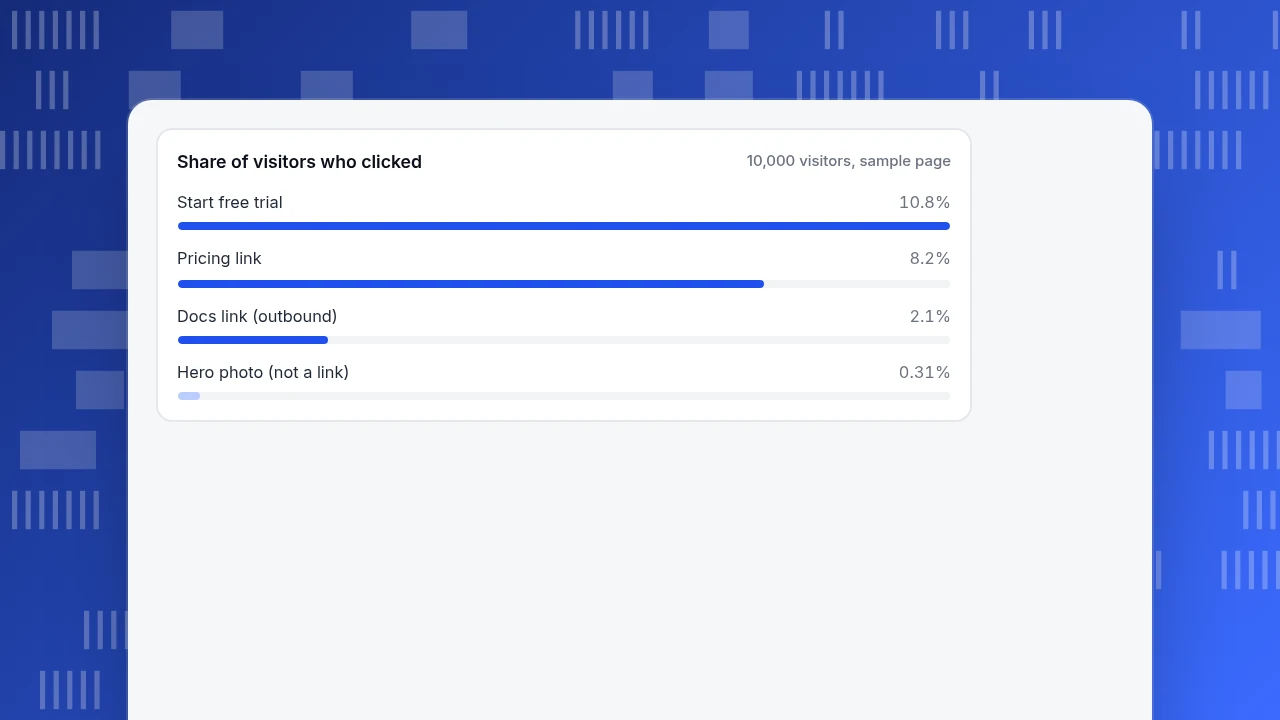
Sample data: a product page was viewed by 10,000 visitors.
| Element | Clicks | Visitors who clicked | Share of visitors | Clicks per clicker |
|---|---|---|---|---|
| "Start free trial" button | 1,350 | 1,080 | 10.8% | 1.25 |
| "Pricing" link in the header | 900 | 820 | 8.2% | 1.10 |
| Docs link (outbound) | 240 | 210 | 2.1% | 1.14 |
| Hero photo (not clickable) | 95 | 31 | 0.31% | 3.06 |
Read the table in two steps. First, 13.5 clicks per 100 visitors on the trial button looks like a 13.5% rate, but only 10.8% of visitors clicked; the other 2.7 points are repeat clicks. Quote 10.8%. Second, the hero photo is not a link, yet 31 people clicked it about three times each. That pattern is a signal that visitors expect something to happen, and it is worth a look before you redesign the button.
Check your counts for robots too. Imperva's 2025 Bad Bot Report says automated traffic accounted for 51% of all web traffic, and any bot that clicks will inflate click counts. Check how your analytics handles bots before you celebrate a rise in clicks.
Share of visitors who clicked
10,000 visitors, sample pageCustom events: the exact version
For the clicks that matter most, send a named event with a small set of properties. The structure that holds up best is object, action, and place:
- Name:
cta_clicked(one name for all call-to-action buttons) - Properties:
location=hero,pricing_table,footer;label=start_trial
This is better than creating hero_cta_clicked, footer_cta_clicked and pricing_cta_clicked, because one name lets you add the three locations in one chart and still break them apart.
Rules to follow:
- One name per action, properties for the variants. Keep the list of values fixed.
- No raw text. Do not send what the user typed or the full text of a link if it could contain personal data.
- Fire on the click, not on the page load of the next page. If the click leads to a new page, send the event before the page unloads.
- Dedupe. Ignore a repeat click on the same element within about a second.
- Test with a real click. Open your real-time view, click the button and confirm that one event arrives with the properties you expect.
| Event name | Properties | Use |
|---|---|---|
| cta_clicked | location: hero, pricing_table, footer | All call-to-action buttons in one chart, split by place |
| outbound_clicked | domain | Which links send visitors away (if you send your own) |
| mailto_clicked | location | Email links, which are not counted as outbound |
| nav_clicked | item: pricing, docs, blog | Header and footer navigation |
One name per action, with properties for variants; the property values are a fixed list.
Decision table by click type
| You want to know | Method | Report to read | Watch out for |
|---|---|---|---|
| How many people pressed the main button | Custom event | Event report or funnel step | Count people, not clicks |
| Which header links people use | Autocapture | Element table in the click map | Generic element names until reviewed |
| Where people click on a page | Click map | Clicks tab for one page, one device | Pages merged by template |
| Which links lead people away | Outbound auto event | Outbound events by domain | Only links to other domains count |
| Which files are downloaded | Download auto event | Download events by file | Links built dynamically may be missed |
| Where people get stuck | Click map and replay | Rage clicks tab, then a few sessions | Replays can expose sensitive screens |
| Which clicks drive conversions | Event in a funnel | Funnel with the click as a step | Step order and time window |
How to do it in TapCub
Take the product page from the table above. This is how you would find those four numbers in TapCub.
- Turn on what is already there. The website script sends outbound clicks (
__outbound, when the link goes to a different domain) and file downloads (__download) by default. They show up in Web analytics › Events. Only http and https links count, somailtolinks are skipped; send those as a custom event. - Send the important click. Call
tapcub.track('cta_clicked', { location: 'hero' })when the button is pressed. Names registered in the catalog must be snake_case and at most 40 characters. - Let autocapture find the rest. With autocapture on (it needs the Pro plan or higher), the script records clickable elements, never password fields, and a click becomes an analyzable event only after you accept it in All-platform analytics › Data › Event inbox. Accepting one backfills the last 90 days.
- Open the click map. All-platform analytics › Behavior › Heatmaps has Clicks, Rage clicks, Scroll reach and Elements tabs for each page and device. The element table lists the most-clicked controls with their share and visitors. A rage click means three clicks within about 300 milliseconds and 50 pixels.
- Follow up with a few replays. All-platform analytics › Behavior › Session replay is off by default; if an admin turns it on, check its masking settings before you watch sessions.
TapCub counts and shows the clicks; it does not decide what to redesign, and it does not run A/B tests on the button.
FAQ
How do I track clicks on a website?
Decide the click type first. Use automatic outbound-link and download events for links that leave or files, a custom event for important buttons, and autocapture with a click map to find clicks you did not plan. Then count the people who clicked, not only the number of clicks.
What is the difference between a click map and click tracking?
A click map shows where on a page people click, aggregated across visitors, as a colour overlay. Click tracking with custom events counts one specific button exactly and can carry properties. Use the map to explore and events to measure.
How do I track outbound link clicks?
Most analytics scripts record outbound clicks automatically when the link points to a different domain. If you write your own, send the request with navigator.sendBeacon() so the browser does not cancel it while the page is unloading. Note that mailto and telephone links are usually not treated as outbound.
Why are my click counts higher than my visitor counts?
People click repeatedly and some clicks come from robots. In the sample above, 1,350 trial-button clicks came from 1,080 visitors, a ratio of 1.25 clicks per clicker. Report the share of visitors who clicked, and filter automated traffic before comparing.
Do I need a tag manager to track clicks?
No. A tag manager is one way to attach click tracking without changing the site's code. You can also send events from your own code or use an analytics script with autocapture. Choose the one your team can maintain and test.
Sources
- Mozilla, Element: click event, MDN Web Docs (when click fires; keyboard activation for elements with default key handlers). Checked 2026-11-23.
- Mozilla, Navigator: sendBeacon() method, MDN Web Docs (asynchronous analytics requests; 64 KiB limit). Checked 2026-11-23.
- Imperva, 2025 Bad Bot Report (automated traffic accounted for 51% of all web traffic). Checked 2026-11-23.
Was this article helpful?
We use your answers to fix and expand this page.
Couldn’t send. Please try again in a minute.
Thanks for the feedback. We’ll use it to improve this page.You’ve already sent feedback on this page. Thanks.

Product Experience Specialist
Writes about product experience, practical workflows, and growth, turning complex processes into clear steps for everyday decisions.