Try it on your own data
Every report in this article is in the free plan. One snippet for web and apps, up to 10 sites.
Start freeA chat with us button is the control that starts a live conversation, and four things decide whether it is clicked: the words, the placement, how easy it is to hit and read, and the timing. In our sample test of four labels, 'Questions? Ask us' won on clicks (2.30% against 1.20%) but produced almost the same number of conversations as 'Chat with us'. Test the label, then measure the conversations, not just the clicks.
What you will learn
- Test two or three labels with the number of variants fixed in advance; with three comparisons the threshold is 0.0167
- In the sample, 21% more clicks gave only about 2% more conversations, so measure the step after the click
- Hit a 24 by 24 pixel target at least (44 is better on phones), keep 3:1 contrast and make the accessible name contain the label
What is a chat with us button, and what decides whether people click it?
A "chat with us" button is the control that starts a live conversation: either the floating bubble in the corner of every page or a button you place yourself, such as "Chat with us" next to a pricing table. Whether visitors click it depends on four things you control: the words on it, where it sits, whether it is easy to hit and read, and whether it appears at the right moment. Test one lever at a time so you know which change moved the number. This guide takes them in that order, with one test you can run on your own site and the arithmetic to read it.
It is not a guide to choosing a chat product. For the setup of the widget itself, see customize the chat widget and the chat widget glossary entry.
Copy: a before-and-after test with real arithmetic
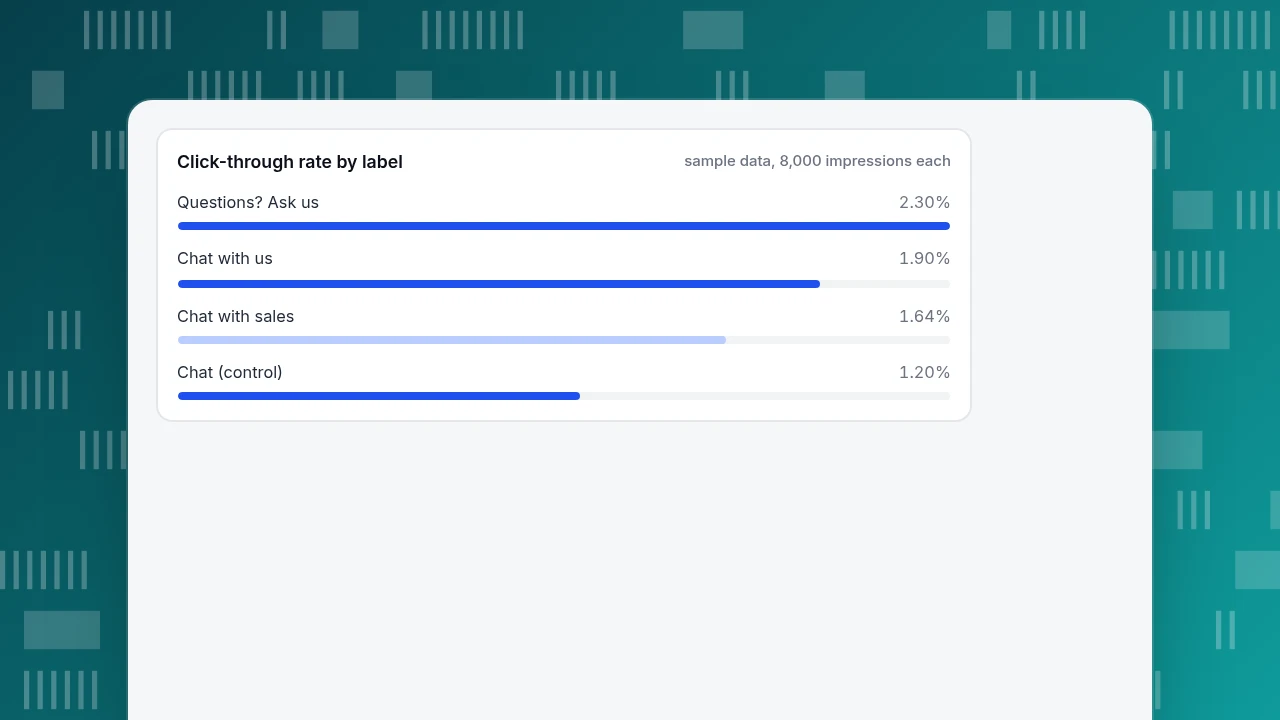
Sample data: four versions of the button label shown to visitors of one pricing page, 8,000 impressions each. The control says "Chat". Click-through rate is clicks ÷ impressions, and each version is compared with the control using a two-sided two-proportion z-test.
| Label | Impressions | Clicks | CTR | Lift vs "Chat" | z | p-value |
|---|---|---|---|---|---|---|
| "Chat" (control) | 8,000 | 96 | 1.20% | |||
| "Chat with us" | 8,000 | 152 | 1.90% | +58.3% | 3.58 | 0.0003 |
| "Questions? Ask us" | 8,000 | 184 | 2.30% | +91.7% | 5.31 | 0.0000001 |
| "Chat with sales" | 8,000 | 131 | 1.64% | +36.5% | 2.34 | 0.0193 |
Three variants beat the control, so which differences can you trust? You compared three variants with one control, so the family is three comparisons. A Bonferroni-adjusted threshold is 0.05 ÷ 3 = 0.0167. "Chat with us" and "Questions? Ask us" clear it easily; "Chat with sales" does not (0.0193 is above 0.0167). It might be a real improvement, but this test does not show it. The same logic is worked through for five variants in the Bonferroni correction example.
Two practical rules follow. Run the test for whole weeks so weekday and weekend visitors are both included. Decide the number of variants before the test, because each extra variant makes the threshold stricter. And size the test first: to detect a rise from 1.2% to 1.9% with 80% power at the 0.0167 threshold you need about 6,520 impressions per variant, and about 15,140 to detect a smaller rise from 1.2% to 1.64%.
Click-through rate by label
sample data, 8,000 impressions eachA click is not a conversation
CTR measures curiosity. What you want is conversations that help. Suppose you also count how many clicks became a conversation in which the visitor sent a message.
| Label | Clicks | Sent a message after clicking | Conversations | Per 1,000 impressions |
|---|---|---|---|---|
| "Chat" | 96 | 70% | 67 | 8.4 |
| "Chat with us" | 152 | 65% | 99 | 12.4 |
| "Questions? Ask us" | 184 | 55% | 101 | 12.7 |
| "Chat with sales" | 131 | 68% | 89 | 11.1 |
"Questions? Ask us" has 21% more clicks than "Chat with us" (184 against 152), but only about 2% more conversations (101 against 99), because a lower share of clickers type a message. In this sample the two labels are practically tied for what matters, and you would choose on the second-order question: which one sends better conversations to your team. Always measure the step after the click, because the quality of each click matters as much as the number of clicks.
Where to put the button
| Placement | Good for | Watch out for |
|---|---|---|
| Floating bubble, bottom right | Every page; a familiar position | Covering a mobile call to action or a cookie banner |
| Inline button beside pricing | Pre-sale questions at the moment of doubt | A second entry point to track separately |
| Header or footer link | People who look for a contact route | Low visibility; treat as a backup |
| Contact page | Visitors already looking for help | Late: they may have left the product pages |
| Checkout or payment step | Rarely | Distracting at the point of purchase; consider hiding chat there |
Start with data instead of taste: look at which pages chats already begin on, and put your inline button there first. Test one placement change at a time and keep the label constant during that test. Record the page and device with every click so you can split the results later.
| Placement | Good for | Watch out for |
|---|---|---|
| Floating bubble, bottom right | Every page; familiar position | Covering a mobile call to action or cookie banner |
| Inline button beside pricing | Pre-sale questions at the moment of doubt | A second entry point to track separately |
| Header or footer link | People looking for a contact route | Low visibility; treat as backup |
| Contact page | Visitors already looking for help | Late: they may have left the product pages |
| Checkout or payment step | Rarely | Distracting at purchase; consider hiding chat |
Start where chats already begin, change one placement at a time and keep the label constant during the test.
Make it easy to hit and read
Three checks from the W3C's WCAG 2.2 apply to any button you place yourself:
- Size. Pointer targets must be at least 24 by 24 CSS pixels, with exceptions for enough spacing or an equivalent control (criterion 2.5.8, Level AA, W3C). The stricter Level AAA criterion asks for 44 by 44 (2.5.5), which is a better target on phones.
- Contrast. The button's edge or fill needs a 3:1 contrast ratio against what is next to it (criterion 1.4.11, W3C).
- Name matches label. If the visible label says "Chat with us", the accessible name must contain that text, so an icon-only button with a different
aria-labelfails (criterion 2.5.3, W3C).
Check the button on a real phone, not only in a browser's device mode. Also watch layout shift. Google's good threshold for Cumulative Layout Shift is 0.1 or less at the 75th percentile (web.dev). A fixed-position bubble should not move content; an inline button inserted after the page loads can.
A button you place yourself: code and tracking
TapCub exposes open(), close() and toggle() on window.tapcub.chat once the bubble has loaded. This button opens chat when it can and otherwise opens the standalone chat page, and it records the click first so you can count it:
<button type="button" data-location="pricing" onclick="
  window.tapcub && tapcub.track && tapcub.track('chat_button_click', { location: this.dataset.location, label: this.textContent.trim() });
  window.tapcub && tapcub.chat ? tapcub.chat.open() : location.href = 'https://chat.askcub.com/YOUR_SITE_KEY';
">Chat with us</button>
The label property lets you compare variants in one event; location lets you compare placements. For the plain version without tracking, see open the chat from your own button.
When the button should appear
Timing is a fourth lever, and it is separate from the label. TapCub has three triggers, none of which opens a conversation until the visitor replies: a teaser card that pops above the bubble about 4 seconds after arrival, once; an invite rule that fires after a visitor stays on a matching page for 3 to 600 seconds, with text up to 300 characters; and a single line an agent sends to a visitor who is online. Outside office hours the visitor can leave an email and a question instead.
Use the invite rule for pages where hesitation is likely, such as pricing, and set the dwell time from data. If most visitors who start a chat do so after 40 seconds, an invite at 5 seconds interrupts people who were still reading. The rule list records impressions, open rate and reply rate; retire any line nobody answers.
What to measure, in order
- Button clicks per 1,000 views. Your CTR by label and by placement.
- Conversations started per 1,000 views. The honest version of the same number.
- Visitors who chatted and reached a goal, against those who did not. Observational: people who chat are often closer to buying, so read it as an upper bound.
- Response time and resolution. A button that works too well on a night when nobody is online produces unanswered chats; compare with your office hours.
Setting this up in TapCub
Use the four-label test above as the scenario.
- Turn chat on and set the look. Live chat › Chat settings › Appearance has Enable live chat, brand name, colour, bubble position and Hide bubble on mobile. A window narrower than 640 pixels counts as mobile.
- Find where chats start. Live chat › Reports shows chats started by weekday and hour and the top 10 hot pages, which are the pages where visitors started a chat. Put your inline button there first.
- Track your own button. Send the
chat_button_clickevent from the code above, then count it in All-platform analytics › Behavior › Behavior analysis and group the raw events bylabelandlocationin the SQL console under Metrics & SQL. - Add a proactive invite for comparison. Live chat › Chat settings › Proactive invites shows a message after a set number of seconds on matching pages, and the rule list records impressions, open rate and reply rate, so you can compare an invite with a button.
- Compare chat and no chat. Live chat › Reports › Conversion attribution gives conversion for visitors who chatted against those who did not, with relative lift and a notice when fewer than 30 visitors chatted.
TapCub does not run the label test for you: it does not split traffic or choose variants. Show each label to a random share of visitors in your own code or tool, send the label with the event, and use TapCub to count and compare. Chat is switched off on a page by adding data-chat="false" to the script tag, see hide chat on some pages for checkout.
FAQ
What should a chat with us button say?
Say what happens next and how little effort it takes. In the sample test, "Questions? Ask us" had a 2.30% click-through rate against 1.20% for plain "Chat", but conversations per 1,000 views were nearly the same as for "Chat with us". Test two or three labels and compare conversations, not just clicks.
Where should the chat button go on a website?
Start with the bottom-right corner on all pages, then add an inline button on pages where chats already begin, usually pricing or product pages. Hide it on checkout steps where it distracts. Change one thing at a time so you know which change moved the numbers.
How big should a chat button be?
At least 24 by 24 CSS pixels to meet WCAG 2.2 Level AA, with exceptions for spacing, and 44 by 44 for the stricter Level AAA target, which suits phones better. Keep a 3:1 contrast ratio with the surrounding colour, and make sure the accessible name contains the visible label.
How do I measure whether the chat button works?
Track clicks with an event that includes the label and the page, then count conversations started per 1,000 views, not only clicks. Finally, compare goal conversion for visitors who chatted with those who did not, remembering that people who chat are often already closer to buying.
Does a chat button hurt page speed?
It can add script weight and, if it is inserted after load, layout shift. Check Core Web Vitals before and after: Largest Contentful Paint at 2.5 seconds or less, Interaction to Next Paint at 200 milliseconds or less and Cumulative Layout Shift at 0.1 or less, at the 75th percentile.
Sources
- W3C, WCAG 2.2 Understanding 2.5.8: Target Size (Minimum) (24 by 24 CSS pixels, Level AA, exceptions). Checked 2026-11-20.
- W3C, WCAG 2.2 Understanding 1.4.11: Non-text Contrast (3:1, Level AA) and 2.5.3: Label in Name (Level A). Checked 2026-11-20.
- W3C, WCAG 2.2 Understanding 2.5.5: Target Size (Enhanced) (44 by 44 CSS pixels, Level AAA). Checked 2026-11-20.
- web.dev, Web Vitals (LCP 2.5 s, INP 200 ms, CLS 0.1; 75th percentile). Checked 2026-11-20.
Was this article helpful?
We use your answers to fix and expand this page.
Couldn’t send. Please try again in a minute.
Thanks for the feedback. We’ll use it to improve this page.You’ve already sent feedback on this page. Thanks.

Product Experience Specialist
Writes about product experience, practical workflows, and growth, turning complex processes into clear steps for everyday decisions.