Try it on your own data
Every report in this article is in the free plan. One snippet for web and apps, up to 10 sites.
Start freeASO guidelines are the rules for improving an app store listing: what Apple and Google allow in each field, and how to tell whether a change helped. Judge a change by two numbers together, the share of store visitors who install and the share of installers still using the app later. In the sample here, downloads rise 17.9% while day-7 retained users fall 7.4%.
What you will learn
- Both stores cap the app name at 30 characters; Apple adds a 100-character keyword field, and neither allows prices or ranking claims in titles
- Test one asset at a time with Apple product page optimization or Google Play store listing experiments, and log the date of every change
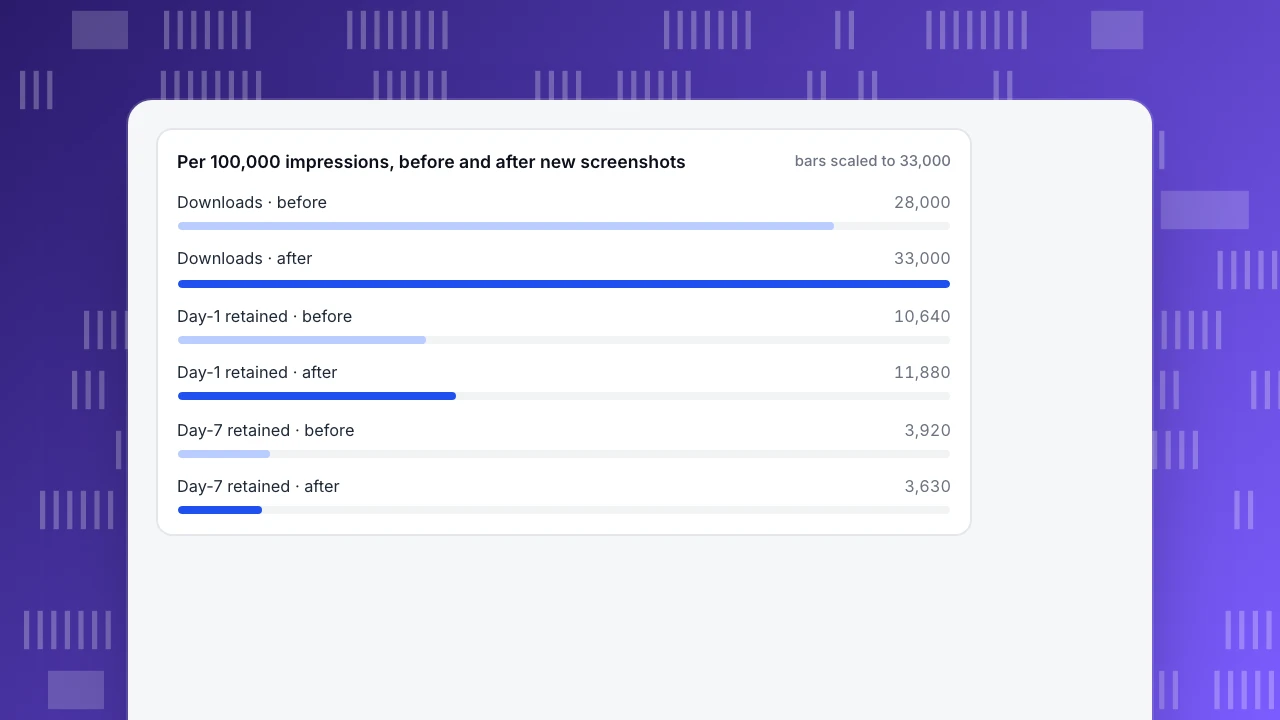
- Decide on retained users per 100,000 impressions: 28% → 33% conversion looks good until day-7 retained users fall from 3,920 to 3,630
What are ASO guidelines?
ASO guidelines are the rules for improving an app's store listing so that more people find it and more of the people who see it install it. ASO stands for app store optimization. The phrase covers two different sets of rules that are easy to mix up: the platform rules, which say what a listing may and may not contain, and the working rules, which say how to improve a listing and how to tell whether the change helped.
This article gives both, in that order, and adds the one that most checklists leave out. A listing change is only an improvement if two numbers move together: the share of store visitors who install, and the share of those installers who are still using the app a few days later. Downloads that do not stay are not growth.
Platform rules below come from Apple's and Google's own documents, checked on 2026-11-17. Store rules change, so check the linked page before relying on a number.
The two jobs of a listing: being found and being chosen
A store listing has to do two separate jobs, and different elements do each one.
- Being found. Apple says App Store search results rest on text relevance (matches for your app's name, subtitle, keywords and primary category) and on user behavior such as downloads, ratings and reviews. Findability is mostly words.
- Being chosen. Once someone is on your page, the icon, screenshots, preview video, rating and description decide whether they tap Get. Persuasion is mostly pictures and claims.
The first job feeds the second: better ranking brings more unique impressions, and a better page turns more of them into downloads. The ratio between the two, downloads divided by unique impressions, is the store page conversion rate. Apple defines it in App Store Connect Analytics as total downloads and pre-orders divided by unique device impressions (metric definitions).
There is a third job that neither store reports for you: attracting the right people. A page can raise its conversion by promising something the app does not deliver. That shows up only after the install, as retention.
ASO guidelines by listing element
| Element | What the platforms say | Mainly affects |
|---|---|---|
| App name / title | App Store name: up to 30 characters (App Review Guideline 2.3.7). Google Play title: 30 characters or fewer; no emoji or repeated special characters, no ALL CAPS unless it is your brand | Ranking and conversion |
| Subtitle (App Store) | A text-relevance factor for search; no prices, no references to other apps, no unverifiable product claims | Ranking |
| Keyword field (App Store) | 100 characters, terms separated by commas without spaces; do not repeat words already in the name, subtitle or category | Ranking |
| Categories (App Store) | The primary category and an optional secondary category are indexed by search | Ranking |
| Description | Apple's search page does not list the description among the ranking factors; Google Play's policy asks for an accurate description with no keyword stuffing, repetition or unattributed testimonials. Full description up to 4,000 characters, short description up to 80 | Conversion |
| Promotional text (App Store) | Apple says it does not affect search ranking, so do not use it for keywords | Conversion |
| Icon | Not allowed to suggest false activity, such as a fake notification dot, on Google Play | Conversion |
| Screenshots and preview | Should show the app in use, not only title art, a login page or a splash screen (App Review Guideline 2.3.3) | Conversion |
| Ratings and reviews | Apple says they can influence how an app ranks in search | Ranking and conversion |
The description and the character limits for Google Play are on the Play Console limits page. The Apple 100-character keyword limit and ranking factors are on Apple's search page. The table is a summary; the linked documents are the rule.
| Element | What the platforms say | Mainly affects |
|---|---|---|
| App name / title | App Store: up to 30 characters (2.3.7). Google Play: 30 or fewer; no emoji, no ALL CAPS unless brand | Ranking and conversion |
| Subtitle (App Store) | Text-relevance factor; no prices, other apps or unverifiable claims | Ranking |
| Keyword field (App Store) | 100 characters, comma-separated; do not repeat words from name, subtitle or category | Ranking |
| Categories (App Store) | Primary and optional secondary category are indexed | Ranking |
| Description | Not named as an Apple ranking factor; Google Play requires accurate text, no keyword stuffing | Conversion |
| Promotional text (App Store) | Does not affect search ranking | Conversion |
| Icon | No false activity such as a fake notification dot (Google Play) | Conversion |
| Screenshots and preview | Show the app in use, not only title art, login or splash (2.3.3) | Conversion |
| Ratings and reviews | Can influence ranking on the App Store | Ranking and conversion |
Summary of Apple and Google documents read on 2026-11-17; store rules change, so check the linked pages.
ASO tips that follow from the rules
These are the working rules that the platform documents imply. Each is a yes-or-no check you can run on a listing.
- Use the name for what the app is. Apple's guideline says metadata should not be packed with trademarked terms, popular app names, prices or irrelevant phrases. If your name needs more than a short descriptor to be found, move the extra words to the subtitle or keyword field instead.
- Do not repeat words across name, subtitle and keywords. Apple says words already in those fields do not need to be repeated in the keyword field, so repeating them spends characters for nothing.
- Do not put rankings, awards or prices in the title or icon. Google Play prohibits text or images suggesting store ranking or performance, or promotions and prices, in those elements.
- Make screenshots show the app. Apple's 2.3.3 asks for screenshots that show the app in use. A first screenshot that is only a slogan fails the rule and gives visitors nothing to judge.
- Describe what the app does. Both platforms ask for an accurate description. Exaggerated claims such as "best game ever" are named as violations on Google Play.
- Treat ratings as a lever you can pull. Because Apple says ratings and reviews can influence ranking, an in-app prompt after a successful moment is worth testing, within each store's rules.
- Localize by market. Keywords, description and promotional text are localizable fields in App Store Connect. Start with the markets that already send you users.
None of these needs a tool. They need a listing you can read and a short list of rules to hold it against.
Test changes instead of guessing
Both stores run experiments on your listing, and using them is better than shipping a change to everyone and reading the next week's chart.
- Apple product page optimization can test up to three alternative app icons, screenshots and app previews against the original, on iOS 15 and later. A treatment is labelled Performing Better or Performing Worse only at 90% confidence or higher, and releasing a new version during a test can affect results if it changes the assets or metadata under test (overview, results).
- Google Play store listing experiments can test the icon, feature graphic and screenshots, and descriptions in localized experiments, with up to 2 variants against the current listing. They stop automatically after 6 months (Play Console Help).
Both tools report store-side outcomes such as installs and page conversion. How long the people who installed stay is something your own analytics has to show, so an experiment that wins on installs still needs the retention check below before you apply it to everyone.
Change one asset at a time. If you change the icon, the first screenshot and the subtitle in one release, you will know the page changed and not which part mattered.
Keep a change log
Store charts rise and fall with seasons, campaigns and featuring, so a change is only understood if you know the date it happened. A log needs four columns:
| Date | Store | Change | What we expect to see |
|---|---|---|---|
| Mar 2 | App Store | First three screenshots replaced | Page conversion up, day-7 retention unchanged |
| Mar 16 | Google Play | Short description rewritten | Conversion up, no change in new-user quality |
| Mar 30 | Both | Name changed to include the main use | Impressions up; check retention for the new audience |
(Sample data.) The last column is the one that matters. A change with no written expectation cannot be judged later, because anything that happens will look like what you hoped for.
Judge ASO by conversion and retention together
The thesis is simple: a listing improvement has to raise installs without lowering the quality of the people who install. Compare these four numbers, before and after, on equal periods:
- Unique impressions (the store's number)
- Store page conversion = downloads ÷ unique impressions (the store's number)
- Next-day and day-7 retention of the new users who arrived in each period (your own analytics)
- Retained users per 100,000 impressions, which combines the last two into one figure
The fourth is the one to decide on. It answers "of every 100,000 people who saw my page, how many are still here?", and it falls when conversion rises on the wrong audience.
Worked example: more downloads, fewer people who stay
Sample data: 100,000 unique impressions in each period, before and after new screenshots.
| Per 100,000 unique impressions | Before | After | Change |
|---|---|---|---|
| Store page conversion | 28% | 33% | +5 points |
| Downloads | 28,000 | 33,000 | +17.9% |
| Next-day retention | 38% | 36% | −2 points |
| Next-day retained users | 10,640 | 11,880 | +11.7% |
| Day-7 retention | 14% | 11% | −3 points |
| Day-7 retained users | 3,920 | 3,630 | −7.4% |
Downloads are 100,000 × 28% = 28,000 before and 100,000 × 33% = 33,000 after. Next-day retained users are 28,000 × 38% = 10,640 and 33,000 × 36% = 11,880. Day-7 retained users are 28,000 × 14% = 3,920 and 33,000 × 11% = 3,630.
Read it in order. Conversion is up 5 points and next-day retained users are up 11.7%, so on day one the change looks like a win. But by day 7 the page produces fewer retained users than before (3,630 against 3,920, down 7.4%). With cohorts this size the retention drops are not noise: a two-proportion z-test gives about 5.1 for the next-day gap and about 11.1 for the day-7 gap. The new screenshots bring in people who install and leave within the week.
The likely cause is a mismatch between what the page promises and what the app does. Apple's guidelines say marketing that promises services the app does not offer is grounds for removal, and screenshots are expected to show the app in use. The fix is to compare the screenshots with the first-week experience, not to revert blindly.
Use these rules to decide:
- Conversion up, next-day and day-7 retained users up: keep the change.
- Conversion up, next-day retained up, day-7 retained down: keep testing, but audit what the new assets promise.
- Conversion up, next-day retained users down: roll back.
- Conversion flat, retention up: the page may be filtering better; compare impressions and sources before judging.
Per 100,000 impressions, before and after new screenshots
bars scaled to 33,000Common mistakes
- Judging by downloads alone. In the example downloads rose 17.9% while day-7 retained users fell 7.4%.
- Changing several assets at once. You learn the page changed, not why.
- Skipping the change log. Without dates, seasons and campaigns get the credit.
- Comparing unequal periods. Use the same number of days and, where you can, the same mix of weekdays.
- Reading retention too early. Day-7 retention for users who installed in the last week is not yet due.
- Copying another app's keywords. Apple says keywords should accurately describe your app, and it may modify inappropriate ones.
How to check an ASO change in TapCub
Take the screenshot change in the example and follow it through TapCub. The store's impressions and downloads stay in App Store Connect and Play Console; TapCub picks up when the app is opened.
- Log the change. In Configuration › Annotations, add a dated annotation for the store change (type Other, scope App). You can also click Annotate on the app overview chart and drag across the dates. New app versions already appear as Release annotations on the day they first show up, so you can see whether a release shipped at the same time (how to add chart annotations).
- Compare new users and next-day retention. In App analytics › Users › Users read new users, and in App analytics › Users › Channels read each channel's average daily new users and next-day retention, if your SDK sets a channel such as the store. Choose the platform in the page header to compare iOS with Android, since store changes are made per store.
- Read day-7 retention for the cohorts around the date. In App analytics › Users › Retention, choose New-user retention at day grain and compare cohorts before and after the annotation. Daily new-user retention reads a site-level summary, so the version and channel filters in the header do not apply to it; to filter by version or channel, switch to week, month or Active retention. Cells that are not due yet are marked as not due, not shown as zero (build a retention report).
- Rule out other causes. In App analytics › Users › Versions, check the first-seen date of any new version near the change, and read track app versions if you need to separate a release from a listing change.
TapCub does not show store impressions or page views, change your listing or run store experiments. It measures what the people the listing brought in do next, so the decision rule above can use real retention.
FAQ
What are the ASO guidelines?
They are the platform rules for what an app listing may contain, such as a 30-character name on both stores and no price or ranking claims in titles, plus the working rules for improving the listing and checking that the change helped. Always check Apple's and Google's current documents for exact limits.
How do I optimize my app for the App Store?
Use the fields Apple indexes: name, subtitle, the 100-character keyword field and category. Do not repeat words across them. Make the icon and screenshots persuasive and honest, then test changes with product page optimization, and compare store conversion with the retention of the new users it brings.
Does the app description affect ranking?
On the App Store, Apple's search page lists name, subtitle, keywords and primary category as the text relevance inputs and does not list the description. On Google Play, the policy requires an accurate, non-repetitive description. Write the description for conversion and honesty, not keyword density.
How do I know if an ASO change worked?
Compare store page conversion before and after on equal periods, then compare retained users per 100,000 impressions. If conversion rises but day-7 retained users fall, the change is attracting the wrong audience. Log each change with its date so seasons and campaigns do not get the credit.
How long should an ASO test run?
Long enough to collect enough impressions on both versions and to reach the point where day-7 retention of the new users is due. Apple labels a result only at 90% confidence or higher, and Google Play experiments stop automatically after 6 months. Avoid releasing other changes to the assets under test.
Sources
- Apple, App Review Guidelines (2.3 Accurate Metadata: 2.3.3 screenshots, 2.3.7 name limit and metadata). Checked 2026-11-17.
- Apple, App Store search (text relevance and behavior factors; 100-character keywords; promotional text). Checked 2026-11-17.
- Apple, App Store Connect Help, product page optimization overview and results; metric definitions. Checked 2026-11-17.
- Google Play Console Help, Metadata policy and store listing limits. Checked 2026-11-17.
- Google Play Console Help, Store listing experiments. Checked 2026-11-17.
Was this article helpful?
We use your answers to fix and expand this page.
Couldn’t send. Please try again in a minute.
Thanks for the feedback. We’ll use it to improve this page.You’ve already sent feedback on this page. Thanks.

Product Adoption Consultant
Explores customer onboarding, live conversations, and self-service, turning common usage questions into practical guidance and improvements.