Try it on your own data
Every report in this article is in the free plan. One snippet for web and apps, up to 10 sites.
Start freeGood proactive chat examples name something concrete on the page, come from a person and ask for one small thing, such as "Choosing a plan? Tell me your monthly visitors and I'll point you to the right one." Fire them on pages where people decide or get stuck, after 25 to 90 seconds, and judge each rule by replies per 1,000 impressions.
What you will learn
- Match the trigger to the page: about 25 seconds on pricing, 40 on a cart, 90 on a setup page; never on payment fields
- In the sample, the cart rule earns 52 replies per 1,000 impressions and the blog rule 2, interrupting 500 readers per reply
- Judge rules by replies per 1,000 impressions and by chatted versus not chatted conversion; fewer than 30 chatted visitors is too small to judge
Three triggers, and what each one is good for
A proactive chat message is a message the visitor did not ask for. It works when the trigger says something about what the visitor is trying to do, and fails when it fires on everyone. The examples below are grouped by trigger: the page they are on, the time they have spent, and what you can see about their intent.
Three different things get called "proactive" and they behave differently:
| Kind | What it is | When it appears | Good for |
|---|---|---|---|
| Teaser | A small card above the chat bubble | About 4 seconds after arrival, once | Telling people chat exists |
| Invite rule | A message in an online agent's name | After the visitor stays on a matching page for the seconds you set | Help at a decision page |
| Agent message | One line written by an agent to a live visitor | When the agent chooses, at most once per visitor per online window | Intent you can see in the visitor's trail |
None of these starts a conversation until the visitor replies. For how to set up rules and tune frequency, see proactive chat invites; for the term itself, see proactive. This article is the copy and the numbers.
A good invite has four parts: who is writing, what you noticed, a specific offer of help, and an easy way out (the visitor can ignore it). Keep it under 300 characters, since that is the limit of an invite rule's text.
| Kind | When it appears | Good for |
|---|---|---|
| Teaser | About 4 seconds after arrival, once | Telling people chat exists |
| Invite rule | After the seconds you set on a matching page | Help at a decision page |
| Agent message | When the agent chooses; once per visitor per online window | Intent visible in the visitor's trail |
None of the three starts a conversation until the visitor replies.
Page triggers: pricing, cart, docs
A page trigger matches a path, such as everything that starts with /pricing, and fires after the visitor has stayed for a number of seconds. The time keeps it from firing on people who bounce.
Pricing page, after 25 seconds. Someone who stays on pricing for 25 seconds is comparing plans.
Hi, I'm [agent name]. Choosing a plan? Tell me roughly how many visitors your site gets a month and I'll point you to the right one.
Cart page, after 40 seconds. The wait is longer because people check a total before they decide.
Need a hand with your order? I can check delivery dates or help with a discount code.
Docs page, after 90 seconds. A long stay on a setup page often means someone is stuck.
Stuck on this step? Paste the error message here and I'll take a look.
Three details matter in all of them. The message names a concrete thing (a plan, a delivery date, an error), it comes from a person, and it asks for something small. "Can I help you?" does not meet any of these.
Where not to place a rule: the payment step of checkout. A visitor typing a card number is in the middle of a critical task, and the Nielsen Norman Group's guidance on pop-ups says to never interrupt people during one. The cart page, before payment, is the right place.
Time and intent triggers: what an agent can see
The invite rule fires on page and dwell time only. Intent beyond that comes from the agent: the visitor sidebar shows where the visitor came from, the pages they have browsed in the last 2 days and their past conversations. An agent can then send one line.
Returning visitor who looked at pricing twice. The trail shows two pricing visits in two days.
Welcome back. I noticed you looked at plans a couple of times. Anything I can answer before you decide?
Visitor from a comparison article. The source shows they arrived from an article, and the trail shows the pricing page.
If you are comparing options, I am happy to answer questions about how we measure things. Ask me anything.
Visitor with an open conversation from yesterday. The past conversation is visible in the sidebar.
Hi again. Did the answer I gave yesterday solve it?
The limit is deliberate: one line, once per visitor per online window. A second message to someone who ignored the first is nagging.
The teaser: a quieter first move
The teaser is a small card above the chat bubble that appears about 4 seconds after arrival, once, and is not shown to visitors who already have a conversation. It is a good fit for a site-wide message because it asks for no attention.
Questions? Ask us here. We usually answer within a few minutes.
Only write a promise like "within a few minutes" if your own first-response time supports it. Check your first response in the chat reports first.
Examples to avoid
- A message on arrival. Nobody has had time to want anything. Google's guidance on interstitials, for example, says that promotional dialogs that obstruct the content are what to avoid.
- A generic offer. "50% off! Chat now!" has no connection to the page and reads as an advertisement.
- A rule on every page. If you match everything, the invite fires on blog readers who came for an answer and are already leaving.
- Stacking messages. If several rules match one page, only the highest priority fires; set priorities so the most relevant wins, because showing one is better than several, a point the Nielsen Norman Group makes about pop-ups in general: never stack them.
- Fake urgency or a fake name. Write as the person who will actually answer.
Rewrite a weak invite in three steps
Most weak invites fail the same four-part test. Take "Hi! How can I help you today?" and fix it one part at a time.
- Add what you noticed. "Hi! Looking at plans?" The visitor sees you know the page.
- Make the offer specific. "Hi! Looking at plans? I can tell you which one fits a site with 50,000 visitors a month." Now there is something concrete to ask about.
- Cut it to one ask. "Looking at plans? Tell me your monthly visitors and I'll point you to the right one." One question, 84 characters, well under the 300 limit.
Write two versions of each invite and run them on different weeks, not at the same time on the same rule, so that you compare replies per 1,000 impressions on equal footing.
Which examples worked: reading the numbers
The rule list records impressions, open rate and reply rate for every rule. Add the goal conversions among people who replied and you can compare examples on one table.
Sample data: four rules over one month.
| Rule | Impressions | Opened | Replied | Replies per 1,000 impressions | Goal reached by repliers |
|---|---|---|---|---|---|
| Pricing, 25 s | 4,000 | 360 (9.0%) | 168 | 42 | 34 (20.2%) |
| Cart, 40 s | 2,500 | 275 (11.0%) | 130 | 52 | 41 (31.5%) |
| Docs, 90 s | 6,000 | 240 (4.0%) | 60 | 10 | 6 (10.0%) |
| Blog, 10 s | 12,000 | 240 (2.0%) | 24 | 2 | 1 (4.2%) |
Totals are 24,500 impressions, 382 replies and 82 goals. The numbers tell a plain story:
- Cart is the best performer. 52 replies per 1,000 impressions, and 31.5% of repliers reach the goal.
- Pricing works. 42 replies per 1,000.
- Docs is weak. It reached 6,000 people for 60 replies. Try a message about a specific error instead of a general offer.
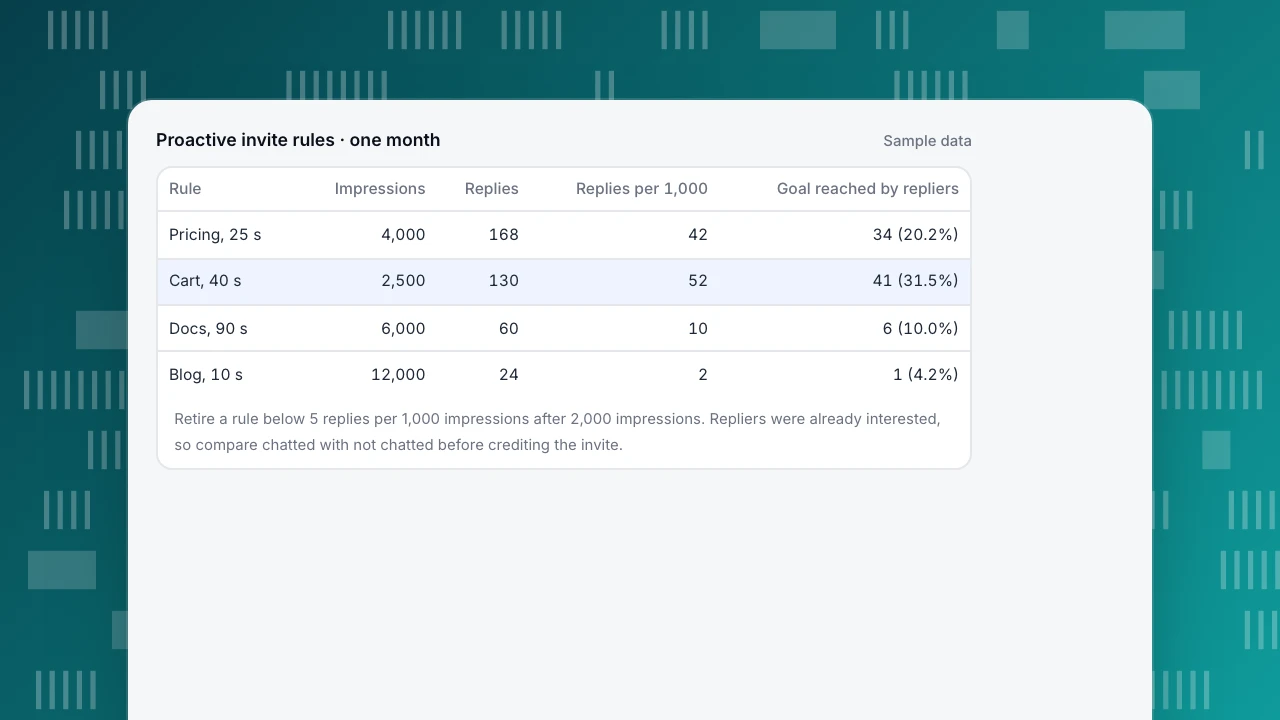
- Blog should be retired. It interrupts 500 readers for each reply (12,000 ÷ 24), against 24 for pricing (4,000 ÷ 168).
A caution about the last column: people who reply are already interested, so their conversion rate is not the effect of the invite. The fair comparison is chatted against not chatted, and a rule with fewer than 30 people who chatted (the blog rule, with 24) is too small to judge.
Rules for acting on the table:
- If replies per 1,000 impressions are below 5 after 2,000 impressions, rewrite the message or retire the rule.
- If opens are high and replies are low, the message attracts curiosity but not a question; ask a more specific one.
- If a rule works on one page, copy the idea to a similar page (from the pricing page to the plan comparison page) rather than widening the match.
Proactive invite rules · one month
Sample data| Rule | Impressions | Replies | Replies per 1,000 | Goal reached by repliers |
|---|---|---|---|---|
| Pricing, 25 s | 4,000 | 168 | 42 | 34 (20.2%) |
| Cart, 40 s | 2,500 | 130 | 52 | 41 (31.5%) |
| Docs, 90 s | 6,000 | 60 | 10 | 6 (10.0%) |
| Blog, 10 s | 12,000 | 24 | 2 | 1 (4.2%) |
Retire a rule below 5 replies per 1,000 impressions after 2,000 impressions. Repliers were already interested, so compare chatted with not chatted before crediting the invite.
Setting these up and measuring them in TapCub
- Open Live chat › Chat settings › Proactive invites and create a rule for each page example. Choose the match (every page, path contains, path prefix or a regular expression), set the dwell time, and write the text; dwell time runs from 3 to 600 seconds and the text can be up to 300 characters.
- If several rules can match one page, set priority: only the highest priority fires. By default each visitor is invited once; leave that on.
- Set the teaser on Live chat › Chat settings › Greeting & translation.
- For intent examples, open a live visitor in Live chat › Inbox. The sidebar shows where they came from, their last 2 days of pages and past conversations, with a link to their analytics profile. Send one line.
- Read results in the rule list (impressions, open rate, reply rate), then open Live chat › Reports › Conversion attribution to compare visitors who chatted with those who did not on the same goal. Fewer than 30 chatted visitors shows a "sample too small" warning.
TapCub does not write the message for you or decide who to invite; you set the pages and the wording.
FAQ
What is a good proactive chat message?
One that names something concrete on the page, comes from a person and asks for something small: "Choosing a plan? Tell me your monthly visitors and I'll point you to the right one." Keep it under 300 characters.
When should a proactive chat message appear?
After the visitor has stayed on a decision page long enough to be thinking: about 25 seconds on pricing, 40 on a cart, 90 on a setup page. Not on arrival, and not during payment.
Which pages should have proactive chat?
Pages where people compare or get stuck: pricing, cart, setup and plan comparison pages. Skip blog posts and any page where people already have what they need.
How many proactive messages are too many?
One visible at a time, once per visitor by default. If several rules match, only the highest priority fires; do not add a second message for someone who ignored the first.
How do I know if proactive chat works?
Track replies per 1,000 impressions for each rule, then compare goal conversion of chatted and non-chatted visitors. Ignore the conversion of repliers alone, since they were already interested.
Sources
- Nielsen Norman Group. Popups: Guidelines for Usability: do not interrupt critical tasks; never stack popups; trigger after meaningful behavior. Checked 2026-11-21.
- Google Search Central. Avoid intrusive interstitials and dialogs: promotional dialogs that obstruct content are what to avoid; legally required ones are exempt. Checked 2026-11-21.
Was this article helpful?
We use your answers to fix and expand this page.
Couldn’t send. Please try again in a minute.
Thanks for the feedback. We’ll use it to improve this page.You’ve already sent feedback on this page. Thanks.

Product Experience Specialist
Writes about product experience, practical workflows, and growth, turning complex processes into clear steps for everyday decisions.