Try it on your own data
Every report in this article is in the free plan. One snippet for web and apps, up to 10 sites.
Start freeLazy loading images means telling the browser to fetch below-the-fold images only when the visitor scrolls near them, using loading="lazy". It cuts image bytes, but only if the hero image stays eager: lazy loading the largest visible element makes Largest Contentful Paint slower. Below: the rules, a worked page, and a check with real visitor data.
What you will learn
- Add loading="lazy" with width and height to images below the first screen; keep the hero eager and give it fetchpriority="high"
- Lazy loading every image is worse than none: in the sample, LCP went from 2.9 s to 3.6 s, while the correct setup reached 2.3 s
- Verify with a 7-day real-visitor baseline of LCP at the 75th percentile, per page type and device, before and after
What does lazy loading do to images?
Lazy loading postpones the download of an image until the visitor is likely to see it. Without it, the browser requests every <img> on the page as soon as it parses the HTML, including pictures that sit seven screens down. With it, an image far below the fold costs nothing until the reader scrolls toward it.
Two numbers frame the problem. The HTTP Archive reports that at the 90th percentile, sites send more than 5 MB of images on both desktop and mobile (figure quoted by web.dev). And Largest Contentful Paint (LCP) is rated good at 2.5 seconds or less, measured at the 75th percentile of page loads. Lazy loading attacks the first number, but you only win if the second one does not move the wrong way.
| Without lazy loading | With lazy loading |
|---|---|
| Every image is requested during page load | Images outside the initial viewport wait until the reader scrolls near them |
| Bandwidth competes with the hero image and the CSS | Early bandwidth is left for what is visible |
| Visitors who never scroll still download everything | Visitors who never scroll download only the first screen |
| Nothing to get wrong | Easy to delay the hero image and make LCP worse |
The rest of this article is about the last row: how to get the savings without the penalty, and how to prove it with your own data.
How do you lazy load images with loading="lazy"?
The native way needs no JavaScript library. Add loading="lazy" to an image that is not in the first screen, and give it dimensions:
<img src="/img/gallery-07.jpg" alt="Gallery photo 7"
     width="800" height="600" loading="lazy" decoding="async">
Three rules cover most cases.
- Set
widthandheighton every image. web.dev explains that without dimensions an image counts as 0 by 0 until it loads, which can make a whole gallery appear to fit the viewport and be fetched at once. A late-loading image without reserved space also pushes the text around when it arrives, which raises Cumulative Layout Shift. - Leave
loadingoff (or seteager) for anything visible on load.eageris the browser default, so you rarely need to write it. - Lazy load everything below the first screen. The browser decides the trigger distance. In July 2020 Chrome cut the distance on 4G from 3000 px to 1250 px, and on slower connections from 4000 px to 2500 px, so images start loading shortly before they scroll into view.
On how well it works: web.dev reports that in Chrome experiments on Android, 97.5% of lazy-loaded images on 4G had fully loaded within 10 ms of becoming visible, and 92.6% on 2G. Readers rarely see a blank placeholder.
For images that must be set from CSS or are swapped by script, an IntersectionObserver is the fallback, but it is more code to maintain and the native attribute is enough for ordinary <img> tags.
Which images should never be lazy loaded?
The most common mistake is adding loading="lazy" to every image, including the hero. That tells the browser to delay the biggest visible element, so the LCP time grows by exactly the delay you added. web.dev's advice is direct: do not lazy load images likely to be visible when the page loads, especially the LCP image; use fetchpriority="high" on that image to raise its priority instead.
The HTTP Archive's 2024 Web Almanac measured how common the mistake is: 9.5% of mobile pages used native loading="lazy" on their LCP image, and 16% of mobile pages with an image LCP lazy loaded it once script-based methods (such as hiding the source in a data-src attribute) were included. A rule of thumb for deciding:
| Image | Lazy load? | Why |
|---|---|---|
| Hero or banner at the top | No, add fetchpriority="high" | Usually the LCP element |
| Logo and first row of product cards | No | Visible on load |
| Anything the visitor must scroll to | Yes | The saving is the whole point |
| Image inside a closed tab or accordion | Yes | Not visible until clicked |
| Image that appears after a click (modal, carousel slide 2+) | Yes | Same reason |
| Responsive image that is hero on mobile but hidden on desktop | Check both | The LCP element can differ by screen size |
The last row matters because the "first screen" is not one size. On a phone the hero may be the first product photo; on a desktop it may be the third. Check both layouts, as described in the next section.
| Image | Lazy load? | Why |
|---|---|---|
| Hero or banner at the top | No, add fetchpriority="high" | Usually the LCP element |
| Logo and first row of product cards | No | Visible on load |
| Images the visitor must scroll to | Yes | The saving is the whole point |
| Images in closed tabs or accordions | Yes | Not visible until clicked |
| Hero on mobile that is hidden on desktop | Check both sizes | The LCP element can differ by screen |
Decide per layout: the first screen is not one size.
How to find your LCP image
Open the page in Chrome DevTools, record a load in the Performance panel, and look at the LCP marker: it points to the element. Or run the page through a lab tool and read its "Largest Contentful Paint element" line. Do it for a phone-sized window and a desktop-sized one.
web.dev lists what counts as an LCP candidate: <img> elements, <image> inside an SVG, the poster or first frame of a <video>, an element with a CSS url() background image, and block-level text. If your LCP is text, image lazy loading will not move it, and the whole question changes. If your LCP is a CSS background image, loading="lazy" on <img> tags does not apply to it at all.
Then build the list: first-screen images stay eager, the LCP image gets fetchpriority="high", everything else gets loading="lazy".
What should the before and after numbers look like?
Sample data: a product listing page with 24 images. The hero image is 220 KB, two other first-screen images are 150 KB each, and 21 images below the fold average 180 KB.
| Measure | All eager | Lazy below the fold |
|---|---|---|
| Image bytes in the initial load | 4,300 KB | 520 KB (−87.9%) |
| Image bytes after a typical visit | 4,300 KB | 1,843 KB (−57.1%) |
| LCP, 75th percentile | 2.9 s | 2.6 s |
The initial load is 220 + 150 + 150 = 520 KB, against 520 + 21 × 180 = 4,300 KB without lazy loading. The "typical visit" row depends on how far people scroll. Assume 35% stop at the first screen, 30% load six more images, 20% load twelve and 15% load all 21. The average number of lazy images fetched is 0.30 × 6 + 0.20 × 12 + 0.15 × 21 = 7.35, or 1,323 KB, so the page averages 520 + 1,323 = 1,843 KB.
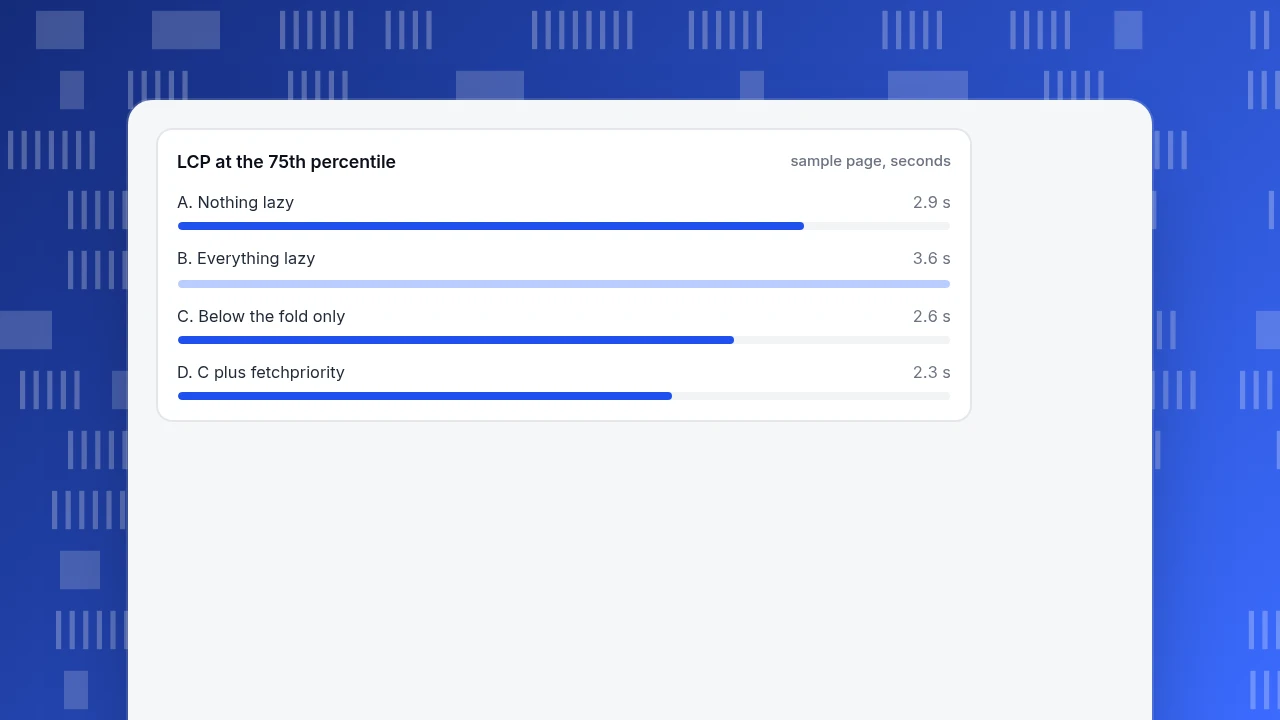
Now the part that decides whether you improved anything. Same page, four variants (sample LCP at the 75th percentile):
| Variant | LCP p75 | Rating |
|---|---|---|
| A. Nothing lazy | 2.9 s | Needs improvement |
B. loading="lazy" on every image including hero | 3.6 s | Needs improvement |
| C. Lazy only below the fold | 2.6 s | Needs improvement |
D. C plus fetchpriority="high" on the hero | 2.3 s | Good |
Variant B is the trap: fewer bytes in the end, a slower page where it counts. Variant D is the target. The values are illustrative, but the order is what you will typically see: lazy loading everything is worse than doing nothing, and saved bandwidth only becomes a faster LCP when the hero is prioritised.
Finally, layout shift. If you leave out width and height, assume lazy-loaded images will shove content when they arrive; reserving the box keeps CLS under the 0.1 "good" line.
LCP at the 75th percentile
sample page, secondsHow do you verify the change with real visitor data?
A lab run on your laptop is one load on one connection. The change you care about is what visitors on ordinary phones experienced. Verify in four steps.
- Write down the baseline for 7 days before the change: LCP at the 75th percentile and the share rated good, per page type (product list, article, home page), by device.
- Ship the change to one template and note the date.
- Wait for the same number of days and compare the same page type and the same device. Check traffic mix did not change in between (a campaign launch will shift the device split on its own).
- Look at behavior too. A faster page that loses its bounce-rate gains because images flash in late is not a win. Check bounce rate, pages per session and the conversion rate of those pages.
Watch for these pitfalls: a promo week skews the baseline; a 3G-heavy country showing up in the sample changes the percentile; a small page type (under a few hundred loads) makes the 75th percentile jump around.
How to check the result in TapCub
TapCub measures page speed from real visitors' browsers, so it can show the before-and-after for the template you changed. TapCub does not measure page weight or fetch your images; for bytes use the browser's network panel. TapCub only does the measuring.
- Before you ship, open Monitoring › Performance. The cards show LCP, CLS, INP, FCP and TTFB; switch the LCP card to P75 and note the value and the share rated good (thresholds: 2.5 s good, 4 s poor).
- Break down by page and device to find your slowest pages: the Slowest pages list is sorted by P75 LCP, so the product listing page is likely near the top.
- Mark the release with Configuration › Annotations so the chart carries a line on the day you shipped.
- After the same number of days, open the same view and compare P75 for the same pages. If the P75 got worse, check that the hero image was not lazy loaded.
- Open Web analytics › Pages and compare bounce rate and average time for the same pages across the two periods.
Two caveats. The page is empty if the script is blocked or an old snippet does not collect vitals, and percentiles jump around on pages with few samples, so judge changes on pages with steady traffic.
FAQ
Does lazy loading improve LCP?
Only indirectly. Deferring below-the-fold images frees bandwidth for the hero, which can lower LCP, but lazy loading the hero itself makes LCP worse. In the sample above, lazy loading everything gave 3.6 s against 2.9 s with no lazy loading, while the correct setup with a prioritised hero gave 2.3 s.
Should I lazy load every image?
No. Lazy load images that start outside the viewport. Images visible on load, especially the LCP image, should load eagerly, and the LCP image can be marked with fetchpriority="high". In 2024, about 9.5% of mobile pages in the HTTP Archive still lazy loaded the LCP image with the native attribute.
Does loading="lazy" work in all browsers?
In a browser that ignores the attribute the image simply loads normally, so nothing breaks; it is a hint, not a requirement. If you need to support unusual environments, an IntersectionObserver script is the fallback.
Is lazy loading bad for SEO?
The native attribute keeps the real address in src, so the image is plain HTML. The risk is script-based lazy loading that hides the address in data-src: anything that does not run the script, such as some crawlers or a visitor with scripts off, never sees the image. Prefer src plus loading="lazy".
How do I stop layout shift with lazy images?
Give every image width and height, or a CSS aspect ratio, so the browser reserves the space before the file arrives. web.dev notes that dimensions matter more with lazy loading because late images without them add to Cumulative Layout Shift.
Sources
- web.dev. Browser-level image lazy loading for the web —
loadingvalues, advice on LCP images, Chrome distance thresholds, 97.5% and 92.6% load figures, 5 MB image weight at the 90th percentile. Read 2026-11-23. - web.dev. Largest Contentful Paint (LCP) — 2.5 s and 4 s thresholds, which elements count, 75th percentile rule. Read 2026-11-23.
- HTTP Archive. Web Almanac 2024: Performance — 9.5% and 16% of mobile pages lazy loading the LCP image. Read 2026-11-23.
Was this article helpful?
We use your answers to fix and expand this page.
Couldn’t send. Please try again in a minute.
Thanks for the feedback. We’ll use it to improve this page.You’ve already sent feedback on this page. Thanks.

Customer Experience Consultant
Writes about live chat, visitor conversations, and self-service, sharing practical ways to make customer communication clearer and more effective.