Free tool Alt text generator that asks where the image goes
The right alt text depends on what the image does on the page, not only on what it shows. Pick an image and say where it appears: a vision model writes the alt text and a longer description, and the W3C decision tree tells you when the answer should be an empty alt="" instead.
- Vision model on request
- Resized in your browser
- W3C decision tree
Write alt text for an image
The sample is a share image from this site. Choose your own image; it stays in your browser until you click Generate with AI.
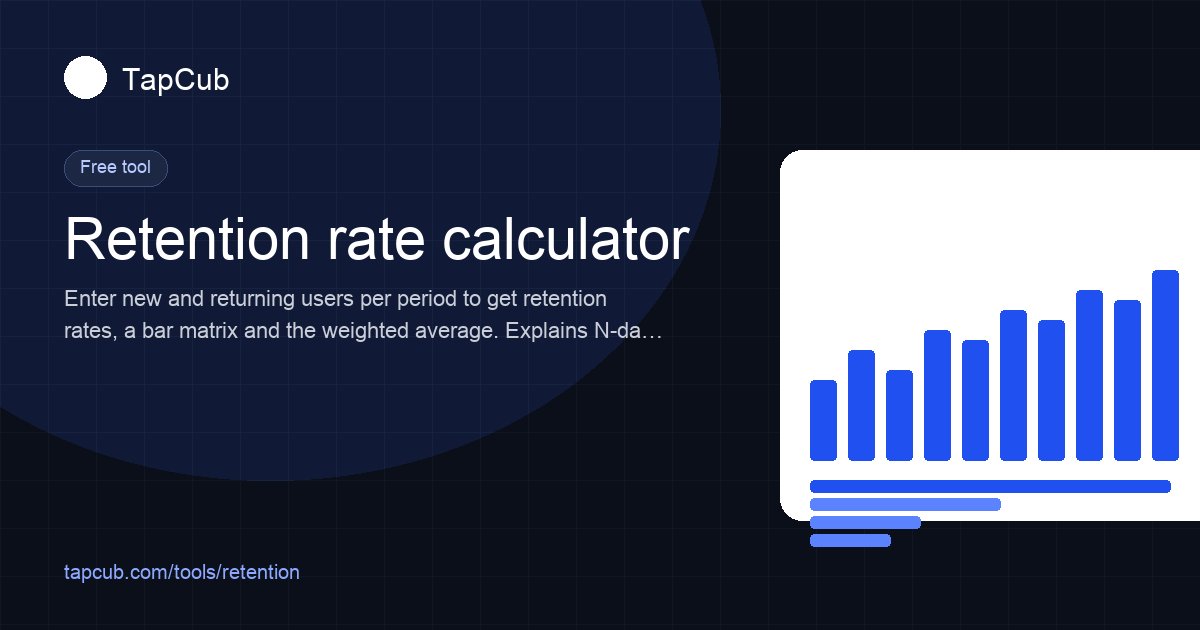
Sample image: tools-retention.jpg (1,200 × 630).
JPEG, PNG, WebP, GIF, AVIF or BMP up to 25 MB. When you click Generate it is redrawn as a JPEG of at most 1,024 px, so location and camera data (EXIF) are not sent.
Filled in when you pick an image; used as src in the code. Rename vague names before you upload.
From the W3C alt decision tree. “Let me decide” follows the model’s answer.
Optional, up to 300 characters: what the page or paragraph is about. The same image needs different alt text in different places.
AI alt text
Written by a vision model from the image and your context. Check that it says what matters on this page.
Sample output from 2026-11-17 (qwen3-vl-plus) for the sample image and context. Pick your own image and click Generate.
Alt text
TapCub Retention rate calculator: enter new and returning users per period; includes bar chart visualization
108 characters
Long description
Dark-themed promotional graphic for TapCub's free retention rate calculator. Shows title 'Retention rate calculator', subtitle explaining input of new/returning users to get retention rates, bar matrix, and weighted average. Includes TapCub logo, 'Free tool' badge, and URL tapcub.com/tools/retention. Right side features a blue ascending bar chart on white card with grid background.
384 characters
<img src="tools-retention.jpg" alt="TapCub Retention rate calculator: enter new and returning users per period; includes bar chart visualization" width="1200" height="630">Uses the AI alt text when you have one, otherwise a draft or a placeholder to replace. Width and height reserve space and prevent layout shift.
Guidance
Rules that run in your browser, from the W3C decision tree, WCAG and Google’s image guidelines.
- NoteDecide first what the image does here. Informative images need a short description; decorative ones need alt=""; images inside links describe the destination.
- OKThe file name “tools-retention” is descriptive. Good for image search.
Version v1.0Updated Update history
What to do with each part
The model sees the picture; only you know what it is for. Use the AI text as a draft and the guidance to decide.
Alt text
The short text a screen reader reads in place of the image and that search engines use to understand it. Keep what matters on this page; leave out what does not, even if it is visible.
Long description
For charts, diagrams and busy images. Put it on the page, in a caption or next to the image, so everyone can read it. It is not meant to go into the alt attribute.
Decorative?
If the model says the image adds no information and that is true in your layout, use alt="". An empty alt is a deliberate choice; a missing alt is an error.
Guidance and code
The guidance follows the W3C decision tree for the role you chose and checks the file name. The code is ready to paste; replace any placeholder text first.
There is no fixed length limit for alt text. Many writers aim for a sentence or less; this tool flags AI alt text over 150 characters, the same threshold as the alt text checker.
Four steps
The guidance works without AI; the description needs one click.
-
1
Choose the image
Pick the file from your computer. It is shown in the page but not uploaded.
-
2
Say what it does
Pick the role and add a line of page context: what the page is about and why the image is there.
-
3
Generate with AI
Click the button. The image is shrunk to at most 1,024 px, sent with the context, and described by a vision model.
-
4
Edit and paste
Adjust the alt text for your page, then copy the code. Put any long description in the page text.
The decision tree and the AI step
Alt text is a decision about purpose first and a description second. The tool follows the W3C order.
- Decorative, or the same as text right next to it → alt="" (empty)
- Inside a link or button with no other text → describe the destination or action
- Contains text that is not elsewhere on the page → repeat that text
- A chart, diagram or map → short alt plus the data or explanation in the page
- Otherwise → a short description of what the image adds to this page
- AI step: the image is redrawn in your browser as a JPEG of at most 1,024 px and about 1.3 MB, then a vision model is asked for alt text without “image of”, a long description and whether the image is decorative; instructions inside the image are ignored
| Role | Alt text | Example |
|---|---|---|
| Informative | What it shows that matters here | alt="Trail running shoe in red, side view" |
| Decorative | Empty | alt="" |
| In a link or button | Destination or action | alt="Retention rate calculator" |
| Image of text | The same words | alt="Spring sale: 20% off until 31 March" |
| Chart or diagram | Short name + data in the page | alt="Weekly retention, weeks 1–10" + table |
One image, four places, four answers
The sample share image on this page, and the alt text it needs depending on where it is used. The first row is the vision model’s real answer on 17 November 2026.
| Where the image is | Alt text | Why |
|---|---|---|
| In an article about the calculator | TapCub Retention rate calculator: enter new and returning users per period; includes bar chart visualization (107 characters, AI) | Informative: the visible text matters |
| Card thumbnail next to the same title as a link | alt="" | The title right next to it says the same thing |
| Alone inside a link to the tool | Retention rate calculator | Functional: name the destination |
| Only as an Open Graph share image | No alt attribute: use og:image:alt | It is not an <img> on the page |
The file name suggested “Tools retention”, which is neither a description nor a destination. The AI answer is close for the first case but would be wrong for the other three; that is why the tool asks for the role.
Alt text that does not help
Most bad alt text comes from describing the picture without asking what it is for.
Keyword stuffing
A list of keywords in the alt text is spam to Google and noise to a screen reader user. Describe the image in plain words.
Missing instead of empty
Leaving out alt makes some screen readers read the file name. For decorative images write alt="", not nothing.
Describing a linked image
“Blue arrow on white” tells nobody where the link goes. Inside a link, say the destination.
Trusting AI on context
A model sees pixels, not your page. It may describe things that do not matter here or miss why the image is there.
Fix images on the pages that matter first
TapCub tells you which pages get the visitors and search traffic, so you know where better alt text and lighter images pay off.
Top pages
Visitors, entries and exit rate per page: start with the pages people actually land on.
Learn moreSearch performance
Search Console and Bing Webmaster queries per page, including image-heavy product and category pages.
Learn moreCore Web Vitals
LCP and CLS at p75 by page from real visitors. Large images and missing dimensions show up here.
Learn moreAlt text generator questions
Still have a question?
Chat with the team behind TapCub — we usually reply within a few hours on business days.
What makes good alt text?
Text that does the job of the image on that page: a short description of what matters for an informative image, the destination for an image in a link, the words for an image of text, and nothing (alt="") for a decorative image. The W3C alt decision tree walks through these cases.
How long should alt text be?
No standard sets a limit. A phrase or one sentence is usually enough; longer explanations belong in the page, for example in a caption. This tool flags AI alt text over 150 characters, the same threshold as TapCub’s alt text checker.
Does alt text help SEO?
Yes. Google says it uses alt text, together with computer vision and the page content, to understand images, and that alt text is used as anchor text when the image is a link. It also warns against stuffing keywords into it.
When should alt text be empty?
When the image is decorative or repeats text right next to it, such as an icon beside its label or a thumbnail beside the same headline. Write alt="", which tells screen readers to skip it. Leaving the attribute out is an error.
Is it safe to upload my image?
Nothing is uploaded when you pick the file. When you click Generate with AI, your browser redraws it as a JPEG of at most 1,024 px, which drops EXIF data such as location, and sends that with your context to TapCub’s API and the model provider (currently Alibaba Cloud Model Studio). TapCub does not store it. Do not send images you are not allowed to share.
Can the AI read the text in my image?
Usually, and the prompt asks it to include key visible text. It can misread small or stylised text, so compare it with the image, especially numbers and names.
Is there a daily limit?
Yes: 3 AI requests a minute and 10 a day per visitor, shared with TapCub’s other AI writing tools. The guidance and code work without AI.
Update history
New features, fixes and data refreshes for this tool, newest first.
-
· v1.0
LaunchedFirst release.
Missing something or found an error? Tell us — requests that come up often go into the next update. All tool updates
Check the rest of your images
Audit every image on a page, then make the files lighter.